

Basecamp is a web‑based project management and collaboration platform built for simplicity. It is said to be one of the pioneers of online collaboration platforms. In 2004, the web design firm 37signals needed software to manage client projects. Nothing on the market worked the way they thought. So they built Basecamp, used it to run their agency, then discovered other companies would pay for it.
Twenty years later, Basecamp still refuses to chase feature bloat while competitors are adding automations, AI agents, and whatnot. I wanted to see if Basecamp could actually tame the complexity of modern projects with its legendary simplistic and opinionated approach. Hence, this Basecamp review.
To create this review, I tested Basecamp extensively across multiple projects, assigned work to teammates, collaborated in chat, dragged cards around in the Card Table, and tried everything I could. I also dug through dozens of customer stories and independent reviews, and I even compared Basecamp with ProofHub. My goal here is to help you decide whether Basecamp fits your situation or not.
Overall, I believe Basecamp is an ideal choice for freelancers, agencies, and small teams who need structure without complexity. It is great when you need a shared home for your to-do list and conversation, and when your projects are relatively small or loosely coupled. However, if you’re looking for advanced project management, things like task dependencies, granular permissions, Gantt charts, or deep analytics, Basecamp may feel limiting. At the end of the article, I’ll highlight ProofHub as a more robust alternative and include a detailed review.
Before we get there, let’s take a closer look at where Basecamp came from, how it works, and how it stacks up in 2026.
What is Basecamp?

Basecamp is a simple, straightforward project management and collaboration tool. It is the flagship product of the company 37 Signal, co‑founded in 1999 by Jason Fried, Carlos Segura, and Ernest Kim. In the early 2000s, their design firm was struggling with feedback scattered across emails and isolated documents. They built a tool to centralize tasks, message threads, and organize related files. And their clients immediately asked to use it. Within a year, the product generated more revenue than their consulting work, so they pivoted to software full-time. Over two decades, the product has been refined to emphasize simplicity and reliability; the homepage proudly notes that Basecamp is “designed for smaller, hungrier businesses” rather than cumbersome enterprises.
Technically, Basecamp provides a central hub for everything related to a project. Each project gets the same set of tools:
- Message Board for announcements and discussions;
- To‑dos for tasks and assignments;
- Schedule for due dates and events;
- Docs & Files for shared files;
- Chat (Previously known as Chat) for group chat.
- Card Table for a kanban‑style board.
This predictable structure helps teams reduce context switching. Once everything is organized inside a project, my team can easily see “Where’s the latest version?” and I spend far less time clearing the air.
Basecamp’s biggest strength is its opinionated simplicity. Every project looks the same, which means there’s almost no learning curve for new teammates or clients.
However, the same design decisions that make Basecamp simple can also feel constraining. Projects always come with the same set of limited tools. This means you are restricted to structuring your project as Basecamp wants you to. In addition, tasks in Basecamp have several limitations:
- No dependencies or subtasks: You can’t specify that one task depends on another or break a task into smaller steps. Complex work must be coordinated manually through conversations.
- No priority field: To prioritize work, you must reorder tasks by drag‑and‑drop or rely on due dates; there’s no “high/medium/low” flag.
- Pay extra for time tracking: Basecamp offers a Timesheet add‑on for an extra fee; time tracking is not available in the base product.
Beyond tasks, Basecamp’s file management can feel basic. Permissions are set at the project level, not per task or file, and client roles are fixed. And while Hill Charts provide a bird’s eye view, there’s no dashboard that rolls up status across projects; you must open each project or rely on the Lineup. If you want to read more about the full project management capabilities of Basecamp, you can also read my article on Basecamp project management.
Basecamp pros and cons at a glance
| Pros | Cons |
|---|---|
| Predictable, easy‑to‑learn structure with message boards, to‑dos, schedules, docs & files and chat | Projects cannot be customized beyond hiding tools; no blank templates |
| Centralized communication reduces email and meeting overload for flexible visualization | Each task has a single assignee; no subtasks or dependencies |
| Visual overview with Lineup, Mission Control and Hill Charts for progress tracking | No built‑in time tracking; Timesheet costs extra |
| Flat pricing for Pro Unlimited plan; guests and clients free | Limited file versioning and no global file library |
| Designed for small to medium businesses with 75 000+ customers worldwide | Lacks advanced PM features like Gantt charts, task priorities and resource management |
Basecamp review: How it works
The following sections walk through Basecamp’s core tools and my experience using them. I’ll highlight where the platform excels and where it falls short.
| Category | Rating (Out of 5) |
|---|---|
| Onboarding & first-minute experience | |
| User interface & navigation | |
| Task coordination | |
| Collaboration capabilities |
Onboarding & first-minute experience
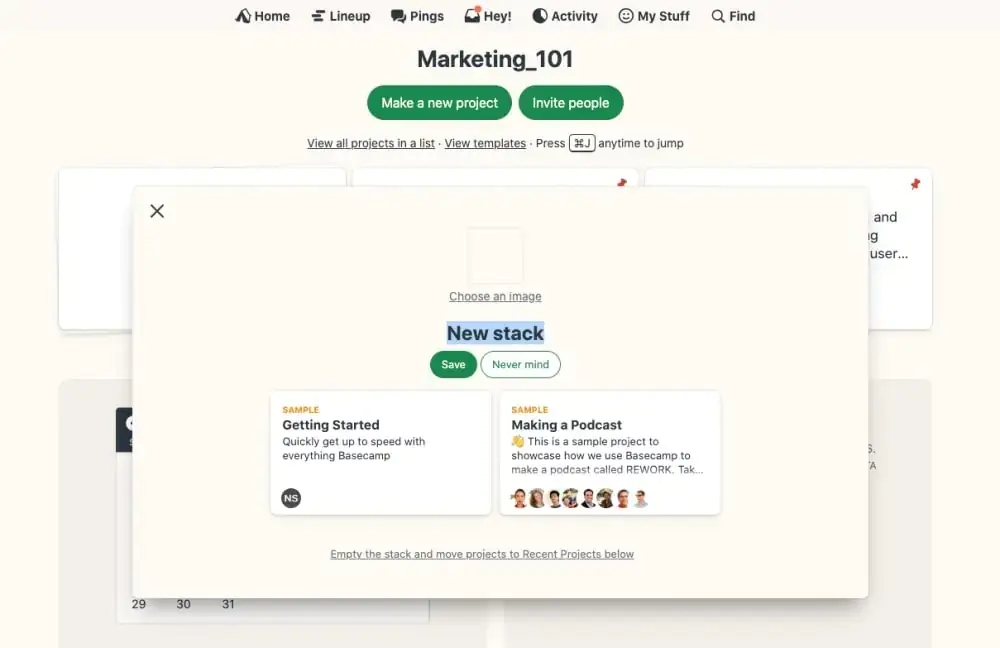
Account creation in Basecamp takes around 2-3 minutes. Email, password, and company name. No verification wait, no setup wizard, no personality quiz about work preferences. The interface loads with two sample projects pre-populated: “Making a Podcast” and “Getting Started.” Each contains example messages, to-dos, files, and schedules that demonstrate functionality without documentation.
This learn-by-exploration approach works great for individuals. The account creator becomes the default administrator. But there is no obvious path to transfer ownership or delegate administrative functions. Teams must consciously invite members, assign permissions, and establish naming conventions, steps that other platforms guide through dedicated onboarding flows.
The “Adminland” section surfaces after clicking the company name in the upper left. Here, administrators control user access, project templates, and tool visibility. The interface uses plain language (“Who’s allowed to see this project?”) rather than enterprise jargon (“Role-based access control configuration”), which reduces cognitive load but occasionally obscures advanced functionality.
Basecamp provides no progress checklist or completion percentage for setup. Teams either grasp the organizational model immediately or spend several days clicking through sections, confused about where conversations belong versus tasks vs reference materials. The company publishes extensive guides, too, but the product doesn’t surface these contextually during setup.
User interface & navigation
Basecamp’s interface follows a three-tier hierarchy: Home → Project → Tool. The home screen lists all projects in a single scrollable feed, with recent activity bubbled to the top. However, there are no dashboards, no customizable views, no drag-and-drop kanban boards. Projects appear as cards showing the title, last activity timestamp, and notification count.

Clicking into a project reveals six tool icons arranged in a grid: Chat, Message Board, To-dos, Schedule, Docs & Files, and Automatic Check-ins. The “Hey!” menu at the top navigation panel tracks all activity across projects, functioning as a universal inbox. The “Lineup” shows personal assignments regardless of which project they originate from.
This spatial organization of tools within projects (not projects within tools) inverts the mental model of many competitors. For instance, ProofHub users think in terms of “my tasks across all projects.” Basecamp users must think in terms of “this project, then which tasks within it.” The shift frustrates new users who expect task-centric navigation.
The design aesthetic prizes whitespace and readability. The interface contains no subtle hover states, no hidden dropdown menus, no right-click context actions. Every interaction requires an explicit click on clearly labeled buttons. This accessibility-first approach benefits distributed teams on varying devices and screen sizes, but power users accustomed to keyboard shortcuts and efficiency hacks find the point-and-click approach sluggish.
Search operates globally across all projects but returns undifferentiated results. A query for “budget” surfaces message threads, to-do items, file names, and schedule entries in a single list, with no filtering by content type or project. The lack of advanced search operators (date ranges, author filters, Boolean logic) limits effectiveness for large organizations with years of accumulated content.
The interface permits minimal customization. Teams either accept the visual design or don’t. This opinionated stance extends to keyboard shortcuts; the platform supports approximately 15 shortcuts, compared to hundreds in tools like Notion or Linear.
Task coordination

Tasks live in the To‑dos section. Each list groups related tasks and can be assigned to one person with a due date. You can add comments, upload files, and reference other items (e.g., link a doc or message); Basecamp automatically creates a “Reference” so you can find related content later. I appreciated this small touch linking a draft document to a task kept discussion tied to the work. However, there’s also no way to define task dependencies, so sequencing tasks requires discipline and communication. Basecamp’s stance is that complexity belongs to people, not software; if you need dependencies or resource allocation, you’re expected to coordinate manually.
Prioritization is similarly manual. Aside from due dates, there is no dedicated priority field. You can reorder tasks by drag‑and‑drop, which is intuitive for small lists but cumbersome when lists grow into the dozens. For teams managing interdependent workflows, like product launches where design must finish before development begins, this manual coordination can quickly become a bottleneck. ProofHub addresses this directly with visual dependency mapping in Gantt charts, letting you link tasks so delays automatically adjust downstream timelines.
Another time‑saver in Basecamp is Automatic Check‑ins. You can schedule questions such as “What did you work on today?” and Basecamp will collect answers from the team. Check‑ins reduce the need for status meetings and create a lightweight record of progress. They’re easy to set up and, because they arrive by email as well as inside Basecamp, your less tech‑savvy stakeholders can respond without logging in.
Collaboration capabilities
The Message Board and chat provide asynchronous and real‑time communication. Message Board posts are long‑form discussions with threading and rich formatting; they sit separately from tasks. This separation keeps discussions organized, but means conversations aren’t inherently tied to tasks. If you discuss a to‑do in the Message Board, you must manually link it or mention people so they’re notified. I found myself copying links from messages into tasks to keep context together. Chat is a group chat room for quick questions, while Pings are one‑to‑one or small‑group direct. In June 2024, Basecamp improved Pings by letting you name conversations and add a welcome quality‑of‑life update that made it easier to find the right chat. However, chats are deliberately kept separate from tasks; there is no way to attach a Chat conversation to a specific to‑do, so details can still get lost.
Docs & Files houses project files. You can upload documents, images, or links to external files (Google Drive, Figma, Dropbox, and others) and organize them into folders. Files live only in the project where you upload them; there is no cross‑project library. While you can upload multiple versions of a file, Basecamp doesn’t offer a true version history or diff view. For example, when a team member uploaded a revised PDF, I could see the new version but not what changed. If you rely on version comparison, you’ll need another tool or a manual process. This creates real friction for design agencies reviewing client mockups or legal teams tracking contract redlines. You end up downloading both versions and manually hunting for differences. The workaround is tedious and error-prone. If visual comparison is essential to your approval process, ProofHub’s proofing tool offers side-by-side version comparison with markup annotations, so reviewers can see exactly what changed between iterations without playing spot-the-difference.
Basecamp’s core features review
Below is the detailed explanation of how each feature in Basecamp works
| Core Features: | Rating (Out of 5) |
|---|---|
| To-Do Lists | |
| Message Boards | |
| Schedule | |
| Docs & Files | |
| Chat | |
| Automatic Check-ins | |
| Collaboration & client portal | |
| Hill Charts | |
| Card Table | |
| Mobile experience | |
| Integrations & automation | |
| Customer support & resources |
To-Do Lists

Basecamp structures tasks as to-do lists within projects. Each list contains individual to-dos that can be assigned to a single person, with an optional due date. Nested subtasks (to-dos within to-dos) add one level of hierarchy, but no further nesting. Checking off a to-do generates a completion notification to assigned users and followers of that list.
The simplicity proves both strength and limitation. Creating a to-do requires only a title: no mandatory fields for priority, story points, or acceptance criteria. Teams can begin tracking work immediately without taxonomic debates. However, complex projects requiring sprint planning, dependency mapping, or critical path analysis find the structure insufficient.
To-do lists lack native prioritization fields. Teams improvise through naming conventions (prefixing items with “P1:” or emoji), but the tool provides no sorting or filtering by priority. Similarly absent: recurring tasks, task dependencies, time estimates, and bulk editing. Dragging tasks between lists moves them, but breaks assignment notifications, a quirk that catches teams by surprise.

The ‘Lineup’ view aggregates personal assignments across all projects into a single chronological list. This addresses the cross-project visibility problem but only for assigned tasks. Unassigned tasks living in to-do lists don’t surface anywhere except within their parent project, creating organizational dark matter that managers can’t easily track. In practice, this means project managers overseeing multiple initiatives must manually click through each project to hunt for unassigned work, a time sink that grows worse as your project count increases. If cross-project visibility for all tasks (not just assigned ones) is critical to your workflow, platforms like ProofHub offer workload reports that aggregate everything in a single view, eliminating the need to excavate individual projects.
Basecamp added a “Card Table” view in 2023 – a kanban-style board for to-do lists. Lists become columns, to-dos become cards, and dragging updates status. This concession to visual project management appealed to teams migrating from Trello, but the implementation feels retrofitted. Cards display only title and assignee, with no color coding, no swimlanes, no WIP limits.
Message Boards
The message board functions as a project-specific forum. Users post messages with formatted text, attached files, and optional @mentions. Responses appear threaded beneath the original post, maintaining conversational context without email’s reply-chain confusion.
Threads remain open indefinitely unless explicitly closed by the creator or project administrator. Closed threads accept no new comments, effectively archiving the discussion. This mechanic helps teams distinguish active conversations from reference material, though determining when to close a thread requires organizational discipline.
The board supports rich text formatting (bold, italic, lists, headings) and inline code blocks, but not syntax highlighting. Images and videos are embedded directly, while other file types appear as download links. The absence of @channel or @here mentions (Slack-style mass notifications) aligns with Basecamp’s async philosophy but frustrates teams accustomed to urgency mechanisms.
Search within message boards operates literally; keywords must match exactly. No semantic search, no natural language queries. Finding a discussion about “quarterly goals” won’t surface threads that mention “Q3 objectives” or “90-day targets” unless those exact phrases appear.
Notification settings default to “subscribe to everything,” meaning every new message generates an email and an in-app notification. Users must manually unsubscribe from threads or adjust project-level notification preferences. This opt-out model serves Basecamp’s “everyone stays informed” philosophy but creates notification fatigue for participants in 10+ projects.
Schedule

The schedule presents a calendar view of project deadlines and milestones. Events can span multiple days and include descriptions, but they lack start times; everything appears as all-day events. This constraint makes Basecamp unsuitable for teams coordinating meetings, shift schedules, or time-sensitive deliverables.
Events can link to related to-dos, creating loose connections between deadlines and work items. However, the system doesn’t enforce these relationships. Deleting a to-do doesn’t remove its associated calendar event, and completing a to-do doesn’t mark the event as done. Teams must maintain consistency manually.
The calendar displays one project at a time. No cross-project view, no team calendar showing all deadlines across initiatives. This project-first organization means managers must click through each project’s schedule individually to understand team capacity and deadline conflicts. Recurring events don’t exist. Weekly standups, monthly reviews, and quarterly check-ins must be manually created each iteration. This omission seems inexplicable given the simplicity of implementing recurrence rules, yet the feature has remained absent for years despite user requests.
Google Calendar integration permits two-way sync, but only for events created within Basecamp. Personal calendar items, meeting invites from other sources, and non-Basecamp events don’t appear. The integration serves as a one-way export mechanism rather than a unified scheduling view.
Docs & files

The Docs section stores reference materials, product specs, style guides, onboarding documentation, and meeting notes. Each doc uses a rich text editor supporting headings, lists, tables, and embedded media. Collaborative editing allows multiple users to write simultaneously, with changes appearing in real time and attribution shown via colored cursors.
Version history tracks every edit with timestamps and author names, permitting rollback to previous states. However, the diff view shows only the final state of each version, not a line-by-line comparison of changes. Teams accustomed to GitHub-style diff analysis or Notion’s granular version comparison find this limiting.
Docs lack organizational hierarchy beyond the flat project level. No folders, no tags, no parent-child relationships. Projects with extensive documentation become increasingly difficult to navigate as the doc count grows. Teams improvise through title prefixes or maintain a master index doc linking to others, but the platform provides no native taxonomy.
The Files section operates as a chronological upload list. Drag files in, they appear in upload order with thumbnail previews for images and icons for other formats. Search finds files by name but not by content within documents. A PDF containing “marketing strategy” won’t surface in search results unless those words appear in the filename.
Storage organization mirrors the docs’ limitation: no folders, no nested structure. Teams managing hundreds of assets across design iterations, contract versions, and presentation decks must develop naming conventions that encode project phase, version number, and content type into filenames. The flat structure that reduces cognitive load for small projects becomes an archaeological excavation for large ones.
File commenting allows discussions attached to specific uploads. Team members can discuss a design mockup or contract revision without cluttering message boards. Comments thread beneath the file, maintaining context, though the interface provides no way to mark discussions as resolved or convert comments into actionable to-dos.
Chat
Chat serves as the real-time chat component, deliberately positioned as an ancillary tool alongside the primary communication channel (Message Board). Each project contains one chat room; no ability to create multiple channels or direct messages between individuals. This architectural decision discourages the always-on chat culture of Slack or Microsoft Teams.
Messages appear chronologically with no threading. A busy chat discussing multiple topics simultaneously becomes impossible to follow, with conversations interleaving and context collapsing. The company frames this as a feature: if chat becomes unmanageable, the team should move discussions to message boards. In practice, teams either adopt this discipline or abandon chat entirely.
Chat supports text, emoji reactions, file uploads, and transcripts (saved snippets of conversation). No voice calls, no video conferencing, no screen sharing. Teams requiring synchronous audio/visual collaboration must use Zoom, Google Meet, or similar external tools, then post notes back in Basecamp.
Notification settings for chat default to “only notify me when mentioned,” contrasting with message board defaults. This acknowledges the ephemeral nature of chat; users aren’t expected to read every message. However, the lack of threading makes returning to a Chat after several hours of absence frustrating. No “catch up” feature, no conversation summaries, just scrolling backward through chronological messages.
The deliberate minimalism extends to features: no status indicators (online/offline), no typing indicators, no read receipts. These social presence signals, ubiquitous in modern chat tools, conflict with Basecamp’s async philosophy. The absence reduces pressure for immediate responses but also eliminates useful context about whether teammates are actively engaged.
Automatic Check-ins
Automatic Check-ins pose recurring questions to team members on a defined schedule. Common applications include daily standups (“What are you working on today?”), weekly progress reports (“What did you ship this week?”), and mood checks (“How’s your energy level?”).
The system prompts users at the scheduled time, collects responses, and posts them to the project’s check-ins section. Teammates can read updates asynchronously without attending meetings. This mechanism scales across time zones and flexible schedules, eliminating the need to coordinate 15-person standups across San Francisco, London, and Singapore offices.
Check-ins support four question types: text response, yes/no, multiple choice, and mood (emoji scale). The interface permits only one question per check-in, though teams can create multiple check-ins with different schedules. A limitation: check-ins can’t reference or aggregate previous responses. Asking “Did you complete yesterday’s priorities?” requires manual lookup of the previous day’s check-in to verify answers.
Response visibility defaults to the entire project. No private check-ins between individuals, no manager-only summaries. This transparency aligns with Basecamp’s flat communication model but constrains use cases. HR pulse surveys, performance discussions, and confidential feedback require external tools.
The notification mechanism sends email and in-app reminders at the scheduled time, with a second reminder after 2 hours if unanswered. However, skipping a check-in carries no consequence; the system simply records “No response” and continues. Teams lacking an accountability culture find check-ins gradually ignored.
Check-in archives provide a chronological history of all responses, useful for retrospectives and pattern analysis. A team tracking “deployment blockers” daily can scroll back weeks to identify recurring infrastructure issues. However, the absence of data export or API access means extracting insights requires manual review rather than automated analysis.
Collaboration & the client portal

The client portal creates project-specific guest access for customers, contractors, or external stakeholders. Clients receive a unique login granting access only to designated projects, with permissions restrictions preventing them from seeing internal projects or company-wide activity.
Within client projects, administrators control tool visibility granularly. A client might see message boards and files, but not to-dos or Chat, creating a curated view of project status without exposing internal work coordination. This capability serves agencies presenting work to clients, freelancers coordinating with customers, and product teams gathering external user feedback.
Basecamp includes unlimited client accounts in the $299/month pricing, removing the per-seat economics that make competitor platforms expensive for client collaboration. Agencies managing 20 internal team members and 50 client contacts across various projects pay the same $299, whereas Asana or monday.com would charge for all 70 users.
The client experience differs subtly from the employee experience. Clients see a simplified navigation without access to Adminland, company-wide announcements, or the Hey! menu aggregating all activities. They interact only with projects they’re explicitly added to, preventing accidental information leakage between clients who share an agency.
Permission granularity limits: clients either have access to a tool, or they don’t. No role-based restrictions within tools (e.g., “clients can view to-dos but not edit them”). Administrators must decide at the tool level, which occasionally forces workarounds like maintaining separate “internal tasks” and “client-visible tasks” to-do lists within the same project.
Client users can’t see other clients, even within the same project. This privacy-by-default prevents competitors working with the same agency from discovering each other’s involvement. However, it also prevents multi-client collaboration scenarios where a platform owner might want customer groups to interact.
The portal generates no separate invoice or billing entity. Client access consumes no additional licenses and appears in no usage metrics. This opacity benefits agencies with fluctuating client rosters but complicates accounting for teams that need to track client engagement costs or allocate software expenses across accounts.
Hill Charts

The Hill Chart visualizes project progress using a metaphorical hill shape. Tasks start at the bottom left (unknown scope, high uncertainty), climb uphill during the figuring-out phase, crest at the peak (problem understood, solution designed), then descend the right slope during execution (known work remaining until done).
Project managers drag tasks along the hill, positioning them based on confidence rather than time spent or percentage complete. A task might move uphill slowly as the team encounters unexpected complexity, then leap toward the summit once a breakthrough occurs. The descent proceeds predictably as understood work gets executed.
This representation solves a specific problem: percentage-complete metrics lie. A task at “80% complete” might hit an insurmountable blocker, remaining at 80% indefinitely. A task “20% complete” might suddenly reveal that the hard parts are done and only tedious work remains. The Hill Chart makes uncertainty explicit. Position on the left slope admits “we’re still figuring this out,” while position on the right slope promises “we know what’s left.”
Implementation requires a cultural shift. Teams accustomed to estimating hours or assigning story points must reframe progress assessment. Managers accustomed to burn-down charts and velocity metrics find the Hill Chart’s qualitative nature disconcerting. The tool provides no calculations, no aggregations, no trends, only spatial positioning updated through manual dragging.
Basecamp positions the Hill Chart as most valuable during the 6-week project cycles advocated in Shape Up, the company’s book about product development methodology. Teams commit to scope, track progress via hill position, and use uphill stalling as an early warning signal to cut features or extend timelines. Outside this methodology, the Hill Chart’s utility diminishes for waterfall projects with fixed deliverables, and agile teams tracking sprint velocity find little value.
The chart displays one project at a time with no cross-project rollup. Executives wanting portfolio-level progress must click through individual project hills, synthesizing mentally. No summary dashboard, no automated risk flagging based on tasks stuck uphill, no capacity analysis. The simplicity that makes the Hill Chart accessible to individual teams limits its usefulness for organizational planning.
Card Table

Basecamp’s Card Table is the platform’s take on a Kanban board, a visual workflow tool that helps teams organise and track work as it flows through multiple stages. Rather than treating tasks as isolated to-dos, the Card Table lets you see your work laid out in columns, moving cards from left (e.g., ideas or incoming work) to right (done) as progress happens.
It’s particularly useful for reactive work, bug reports, design requests, content production, or any process where work evolves through discrete phases. By default, Basecamp sets up columns like Triage (where new cards land), Figuring It Out (where teams clarify scope), In Progress, and Done, but you can add, rename, reorder, and even remove columns to reflect how your team works. Cards can hold a title, assignee, due date, description, attachments, and comments, and dragging a card across columns gives a clear sense of flow without needing a to-do list for every stage.
One thoughtful touch is the “Not Now” section, a built-in holding area for ideas or tasks you don’t want to lose but aren’t ready to prioritise yet. Another is the ability to watch specific columns for updates, so team members stay informed without having to monitor the whole board constantly.
In practice, the Card Table bridges the gap between Basecamp’s lightweight to-dos and more structured visual planning tools like Trello. It doesn’t offer advanced Kanban features such as swimlanes or WIP limits, but for teams that want a visual workflow without unnecessary complexity, it brings clarity and focus to work that doesn’t fit neatly into a linear to-do list
Mobile experience
Basecamp maintains native applications for iOS and Android, last significantly updated in October 2024. The mobile interface condenses desktop functionality into a bottom navigation bar with five tabs: Projects, Assignments, Activity, Pings (direct messages), and Hey! (notifications).
Push notifications arrive reliably, but granularly; each message, to-do assignment, and mention generates a separate notification. The settings page offers project-level muting and notification scheduling (quiet hours), but no intelligent bundling or digest mode. Users in active projects receive dozens of daily pings.
The mobile interface makes reading easier than writing. Message threads, to-dos, and docs display cleanly on smartphone screens with responsive text scaling. However, composing formatted messages, creating to-do lists with multiple items, or uploading and organizing files feels constrained by mobile keyboards and touch targets.
Integrations & automation
Basecamp provides limited native integrations compared to competitors. The platform connects to Google Calendar (two-way sync of schedules), Zapier (trigger actions based on Basecamp events), and a handful of others through its API. No Slack integration, no Microsoft Teams connector, no Salesforce sync.
The Zapier connection enables workflows like “When a to-do completes, create a Trello card” or “When a file uploads to Basecamp, save a copy to Google Drive.” These automations require manual configuration through Zapier’s interface and consume Zapier task allotments. Teams with complex automation needs often maintain multiple tools in the integration chain.
Basecamp’s API uses REST architecture with JSON responses, documented at GitHub. The API exposes read and write access to most platform features: projects, messages, to-dos, files, people, and events. Developers can build custom integrations, mobile applications, or reporting dashboards.
API rate limits permit 30 requests per 10-second window per user account, with automatic backoff if exceeded. This conservative limit prevents aggressive polling but constrains real-time sync applications. A dashboard querying 20 projects every few seconds to display aggregate metrics would immediately hit rate limits.
Email integration permits forwarding messages into Basecamp projects. Each project generates a unique email address; forwarding a client email to that address creates a message board post with the full thread. This bridges email-centric workflows with Basecamp’s project organization, useful for customer support teams tracking conversations.
The absence of pre-built connectors for Slack, Jira, GitHub, and other developer tools forces engineering teams to choose: adopt Basecamp exclusively, maintain parallel systems, or invest in custom integration development. The friction discourages partial adoption; teams either move communication fully into Basecamp or not at all.
Customer support & resources
Basecamp provides email support with typical response times under 2 hours during US business hours. The support team consists of actual Basecamp employees (often including founders Jason Fried and David Heinemeier Hansson) rather than outsourced contractors, resulting in responses that understand product philosophy and history.
No phone support exists. The company’s position: email support creates searchable records, permits thoughtful responses, and respects supporter time rather than interrupting with urgent calls. Teams accustomed to immediate phone escalation for critical issues find this frustrating.
The knowledge base contains approximately 200 articles covering setup, features, troubleshooting, and best practices. Articles use screenshots and step-by-step instructions, though some refer to older interface versions awaiting update. Search functionality uses simple keyword matching without synonym awareness.
Video tutorials and webinars don’t exist. Basecamp assumes that if the software needs extensive video training, the design has failed. Users must learn through documentation and experimentation. This sink-or-swim approach works for simple use cases but leaves complex scenarios (multi-project templates, client portal configuration, API integration) under-documented.
The company maintains an active blog and podcast (Rework) discussing remote work, company culture, and product development methodology. These resources articulate Basecamp’s worldview compellingly, but don’t function as product training. Teams looking for tactical “how to configure X” guidance must rely on support articles.
Basecamp pricing
Basecamp’s pricing model offers three plans:
- Basecamp Free – Run one project with up to 1 GB of storage. This plan is ideal for freelancers or very small teams who just need a single space to collaborate.
- Basecamp Plus – Designed for freelancers, startups, and small teams. You pay US$15 per user per month and get unlimited projects, 500 GB of storage, 24/7 support, and the option to purchase add‑ons like the Timesheet (time tracking) and Admin Pro Pack for advanced permissions. Only employees are billed; clients and contractors are free.
- Basecamp Pro Unlimited – A flat price of US$299/month when billed annually (or $349/month monthly) buys unlimited users, unlimited projects, and 5 terabytes of storage. It includes the Timesheet and Admin Pro Pack add‑ons and provides personal onboarding and priority support. For agencies or companies with many collaborators, this plan can be more cost‑effective than per‑user pricing.
All plans include the same core tools: Message Board, To‑dos, Card Table, Schedule, Docs & Files, Reports, and Check‑ins. Upgrading primarily increases the number of projects, storage, and support level. Note that time tracking is not included with Free or Plus; you must either purchase the Timesheet add‑on or integrate a third‑party time‑tracking tool.
Where Basecamp falls short
While Basecamp excels at simplifying collaboration, its opinionated approach leaves gaps that become apparent as your projects grow in size or complexity:
- Rigid project structure: You cannot remove or rearrange the default tools, which may lead to clutter when a project doesn’t need all six sections.
- Limited task features: Tasks have a single assignee, no subtasks or dependencies, no priority flags, and no recurring tasks. Manual drag‑and‑drop ordering works for small lists but not for large, detailed projects.
- Minimal analytics: Hill Charts and calendars are the only native progress visualizations. Hill Charts are subjective and better for high‑level monitoring. There is no workload view, resource planning, or burndown chart.
- Basic permissions: Permissions are set at the project level; there’s no granular control to restrict access to a specific list or file. Client roles are fixed, and you can’t tailor what clients can do beyond toggling their visibility.
- No integrated time tracking: Time tracking requires the Timesheet add‑on or third‑party integrations.
- File management limitations: Files live within projects; there’s no central library, and version history lacks diff or side‑by‑side comparisons. This makes managing recurring assets across projects more tedious.
- Lack of advanced project views: There are no Gantt charts, calendars with drag‑and‑drop scheduling, workload dashboards, or agile boards beyond the simple Card Table. If you manage complex initiatives with dependencies, milestones, and resource allocation, you’ll hit Basecamp’s ceiling quickly.
If any of these limitations are deal‑breakers, you may need to supplement Basecamp with other tools or consider an alternative. In the next section, we look at one such alternative, ProofHub.
▶Best Basecamp alternatives for you in 2026
▶Basecamp for project management: Comprehensive guide 2026
Best Basecamp alternative: ProofHub
When Basecamp’s simplicity becomes constraining, ProofHub often comes up as a more feature‑rich alternative. ProofHub is an all‑in‑one project management and team collaboration platform designed for teams of all sizes. Like Basecamp, it aims to centralize tasks, discussions, files, and schedules in one place. Unlike Basecamp, ProofHub offers multiple project views, built-in time tracking, project reporting, granular permissions, and several other features that give you better clarity and control. Here’s a quick overview of what ProofHub offers:
- Task management with multiple views: You can choose between board (Kanban), table, calendar, and Gantt chart views. Gantt charts allow you to define dependencies, drag tasks along a timeline, and adjust schedules visually.

- Built‑in time tracking: ProofHub includes timers, timesheets, and activity reports. You can estimate time, log hours, and generate exportable reports, no separate add‑on required.

- Proofing and approvals: When collaborating on documents or designs, you can annotate files, request approval, and track versions. This reduces back‑and‑forth via email.

- Custom roles and granular permissions: ProofHub allows you to create custom roles, control what each user can see or do, and invite clients with tailored permissions. Basecamp only offers project‑level roles.

- Project templates and forms: You can build templates for recurring projects and tasks, and create forms that feed directly into your task lists. This speeds up onboarding and captures work requests consistently.

- Flat pricing: ProofHub charges a flat monthly fee regardless of team size. The Essential plan starts at a flat $45/month billed annually for up to 40 projects and unlimited users, while the Ultimate Control plan costs a flat $89/month billed annually for unlimited projects and unlimited users. There are no per‑user fees, making it economical for large teams.

- Additional tools: ProofHub includes chat, announcements, notes, custom reports, file sharing, white‑labeling, and more.
Basecamp vs ProofHub
The table below summarizes the core differences between Basecamp and ProofHub compared on key dimensions
| Basecamp | ProofHub |
| Philosophy & audience | |
| Designed for smaller, hungrier businesses with a focus on simplicity | Designed to be an all‑in‑one platform for teams of any size; targets businesses that need more structure |
| Task management | |
| To‑dos with single assignee, due dates and comments. No dependencies or subtasks. Manual drag‑and‑drop ordering | Tasks can have multiple assignees, priority levels and dependencies. Includes Gantt charts and Kanban boards |
| Collaboration & communication | |
| Message Board for threaded discussions, Chat for group chat, Pings for direct messages; discussions separate from tasks; limited annotations on files | Chat, discussions, @mentions and inline comments. Proofing and markup tools allow annotations directly on documents |
| File management | |
| Files live inside each project; no global library; basic version history; limited permission control | Central file area with version history and proofing; roles can be customized per file or folder |
| Templates & automation | |
| Project templates only; no task‑level templates. Automatic Check‑ins collect status updates | Save project and workflow templates; forms that feed into tasks; recurring tasks. |
| Time tracking | |
| Not included; Timesheet add‑on available for extra | Built‑in time tracking and timesheets |
| Reporting & analytics | |
| Lineup, Mission Control and Hill Charts provide high‑level visibility but lack data‑driven analytics; no workload or burndown | Detailed reports, custom dashboards and analytics; workload and resource management |
| Pricing | |
| Free plan for one project; Plus plan at $15/user/month; Pro Unlimited at $299/month for unlimited | Essential plan at $45/month (annual) for up to 40 projects; Ultimate Control at $89/month (annual) for unlimited projects and unlimited users |
In short, Basecamp emphasizes ease of use and communication, while ProofHub adds layers of structure – dependencies, Gantt charts, templates, and built-in time tracking. If your team wants to keep things light and conversational, Basecamp may be plenty. If you need more control over timelines, resources, and permissions, ProofHub is the better fit—and you can test every advanced feature Basecamp doesn’t offer with a free 14-day trial of ProofHub to see firsthand how real project management tools improve team efficiency.
Frequently asked questions
What is Basecamp, and who is it best for?
Basecamp is a project management and team collaboration platform designed for simplicity, combining to-do lists, message boards, schedules, documents, and group chat in one place. It’s best suited for small to mid-sized teams, creative agencies, and remote-first companies that prioritize straightforward communication over complex workflows and don’t need advanced features like Gantt charts or resource management. Basecamp works particularly well for teams that value ease of use and want to avoid feature bloat, making it ideal for marketing teams, consultants, and startups that need quick onboarding without extensive training.
How much does Basecamp cost in 2026?
Basecamp offers two main pricing tiers: Basecamp Plus (unlimited users, projects, and storage for $15/user/month) and Basecamp Pro Unlimited (adds advanced features like timesheet tracking, priority support, and onboarding assistance for $299/month). The flat-rate pricing makes Basecamp particularly cost-effective for larger teams compared to per-user competitors.
What features does Basecamp include?
Basecamp includes message boards for announcements, to-do lists with assignments, schedules with milestone tracking, document storage, real-time group chat (Campfires), automatic check-ins, and a centralized activity feed called “Hey!” for notifications. All plans include unlimited projects, unlimited users (on flat-rate tiers), client access, and mobile apps for iOS and Android. Additional features on higher tiers include timesheet tracking, advanced reporting, priority support, and personalized onboarding sessions.
What are the main pros and cons of using Basecamp?
Pros: Basecamp’s simplicity makes it extremely easy to learn with minimal training, its flat-rate pricing is budget-friendly for growing teams, and it consolidates communication to reduce email clutter and tool sprawl.
Cons: It lacks advanced project management features like Gantt charts, dependency tracking, custom workflows, and robust reporting, which can frustrate teams with complex needs; its opinionated design doesn’t allow much customization; and it may feel too basic for data-driven managers who need detailed analytics. The all-or-nothing feature set means teams often outgrow it or need supplementary tools.
How does Basecamp compare with ProofHub?
Basecamp prioritizes simplicity and ease of use with a streamlined, opinionated interface that reduces complexity, while ProofHub offers richer task management features, including Gantt charts for timeline visualization, built-in time tracking, granular role permissions, and customizable dashboards for reporting. ProofHub is better for teams needing visual project planning, detailed progress tracking, and more control over user permissions and workflows, whereas Basecamp suits teams that want minimal setup and prefer communication-focused collaboration over structured task management. If your team needs advanced planning tools and detailed oversight, ProofHub’s feature depth outweighs Basecamp’s simplicity advantage.
Does Basecamp offer built-in time tracking?
Basecamp Pro Unlimited ($299/month billed annually) includes built-in timesheet tracking that allows team members to log hours directly within projects, while the standard Basecamp plus plan ($15/user/month) does not include native time tracking and requires the separate Timesheet add-on.
Can clients collaborate in Basecamp without extra cost?
Yes, Basecamp’s plans include unlimited client users at no additional charge, allowing you to invite external stakeholders, contractors, or customers to specific projects without increasing your subscription cost. Client users function as guests with access only to projects they’re invited to, not your entire Basecamp account, which maintains privacy and boundaries. This makes Basecamp particularly cost-effective for agencies, consultants, and service businesses that frequently collaborate with external parties compared to competitors charging per-user for client access.
What are the best Basecamp alternatives for complex project needs?
ProofHub offers Gantt charts, time tracking, and custom roles while maintaining relative simplicity; Asana provides robust task dependencies, timeline views, and workflow automation for structured processes; ClickUp delivers extensive customization with multiple project views, goal tracking, and advanced reporting for power users; and monday.com excels at visual workflow management with flexible boards and integrations. These alternatives suit teams that have outgrown Basecamp’s simplicity and need features like resource management, advanced analytics, automation, or industry-specific templates. Choose based on whether you prioritize visual planning (monday.com), task complexity (Asana), customization (ClickUp), or balanced features (ProofHub).
