
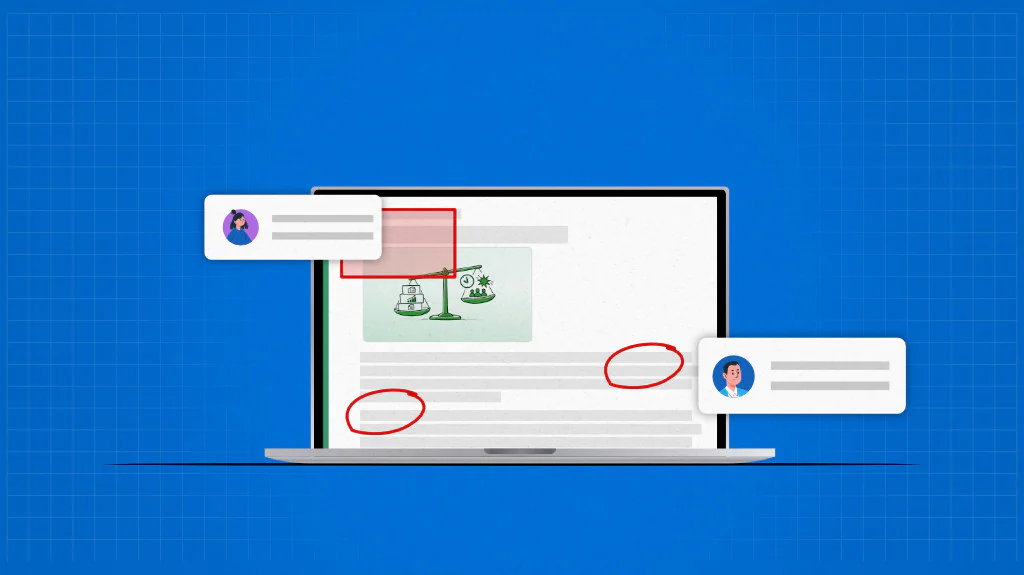
PDF annotations are notes, comments, highlights, shapes, and other visual markers added to a PDF to provide feedback, suggestions, and recommendations.
It turns static documents into collaborative workspaces where designers, clients, managers, and stakeholders make decisions with complete context.
Annotating eliminates confusion, keeps feedback centralized, helps maintain the integrity of the original file, and streamlines the review process.
PDF annotation plays a critical role in improving communication, reducing review cycles, and streamlining document-based collaboration.
Understanding its benefits, types, implementation process, and challenges can help you improve communication, streamline reviews, and make document collaboration more efficient.
What are PDF annotations?
PDF annotations are notes, comments, highlights, and markups added to a PDF document to communicate changes and provide feedback. These exist as a separate layer on the PDF document, keeping the original file intact.
It enables reviewers to identify issues, suggest improvements, and add feedback directly on the document at the exact location.
What are the benefits of PDF annotation?
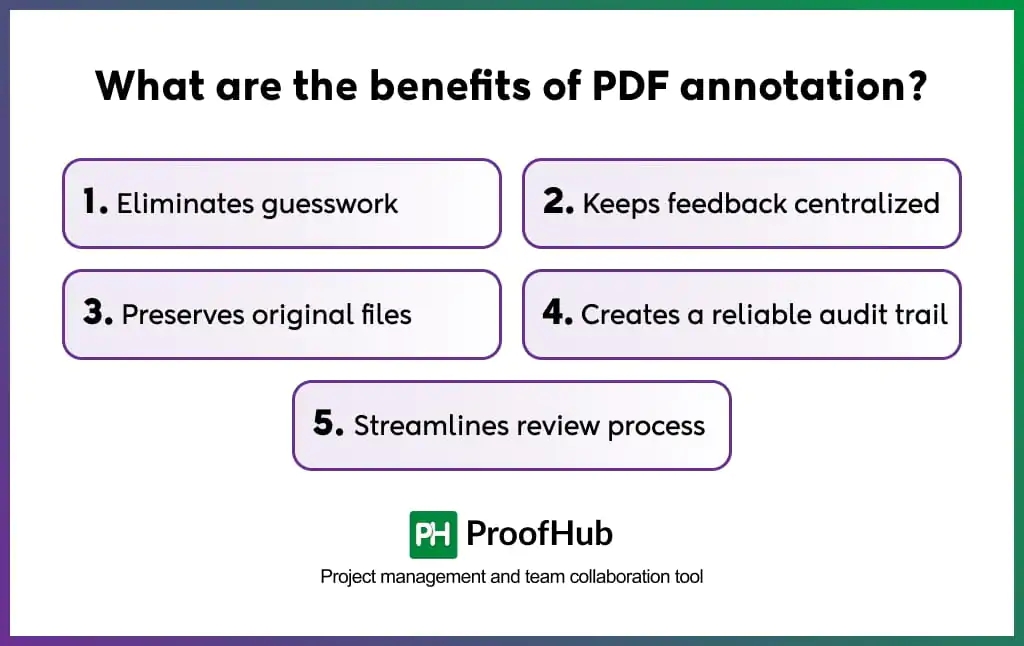
PDF annotation helps eliminate guesswork, keeps feedback centralized, preserves the original file, and streamlines the review process.
1. Eliminates guesswork: The visual cues increase clarity around suggested changes and reduce misunderstandings among other stakeholders. Visual references, like arrows, shapes, and highlights, provide clear context about the specific element a reviewer is referring to.
2. Keeps feedback centralized: Annotations create a single review space where comments and feedback from all stakeholders exist in one place.
3. Preserves original files: Create a single review space that does not alter the original document. Reviewers leave recommendations about the layout, design elements, content, and formatting without making direct edits.
4. Streamlines review process: Removes the need for disconnected feedback channels that make reviews fragmented. Commenting, responding, and approving happen within the same document. Every conversation and action remains contextual without switching between multiple documents or maintaining records.
What are the types of PDF annotations?
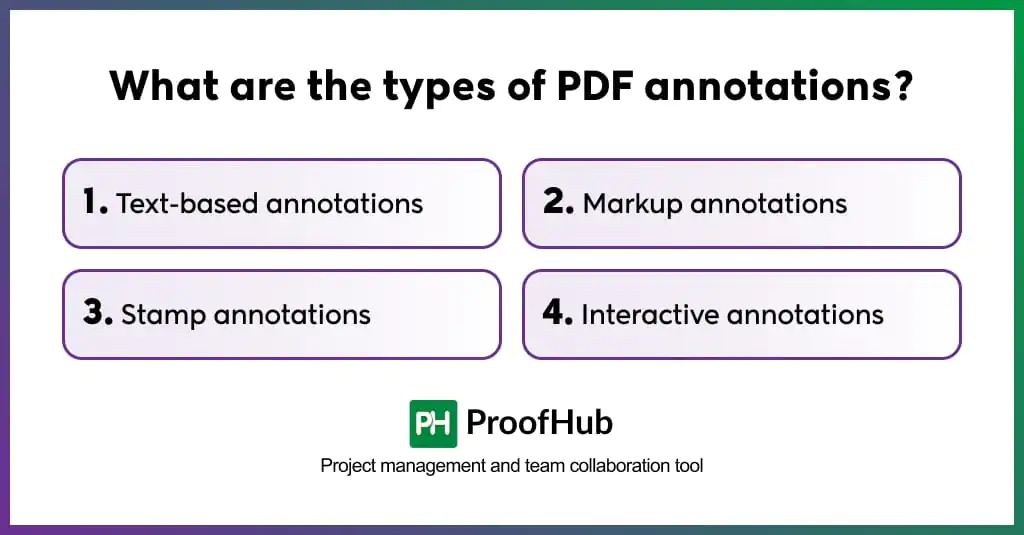
PDF annotations are classified into four main types: text-based annotations, markup annotations, stamp annotations, and interactive annotations.
1. Text-based annotations
Text annotations are written feedback added directly to a PDF to describe what needs to be changed.
These include comments, highlights, sticky notes, underlining, and strikethrough, which are among the most commonly used annotation tools.
This is particularly useful when reviewers need to provide detailed feedback, explanations, or suggestions on a document.
2. Markup annotations
PDF markup-based annotation is the visual indicator that highlights the exact area requiring attention or changes.
These include shapes, drawings, lines, and arrows, which help reviewers point out specific elements or sections within a document.
They can also be combined with text annotations to provide clearer context.
3. Stamp annotations
Stamp annotations are predefined or custom visual labels that indicate the visual status of a document or a particular section.
These include stamps such as Approved, Rejected, Reviewed, Draft, Confidential, or custom labels, making it easier for creative teams and stakeholders to track review progress and communicate decisions.
4. Interactive annotations
Interactive annotations are different from traditional feedback tools by adding functional elements to a PDF.
These include hyperlinks, embedded media, form fields, file attachments, and digital signatures that allow users to interact with documents and access additional information differently.
How to annotate and markup a PDF?
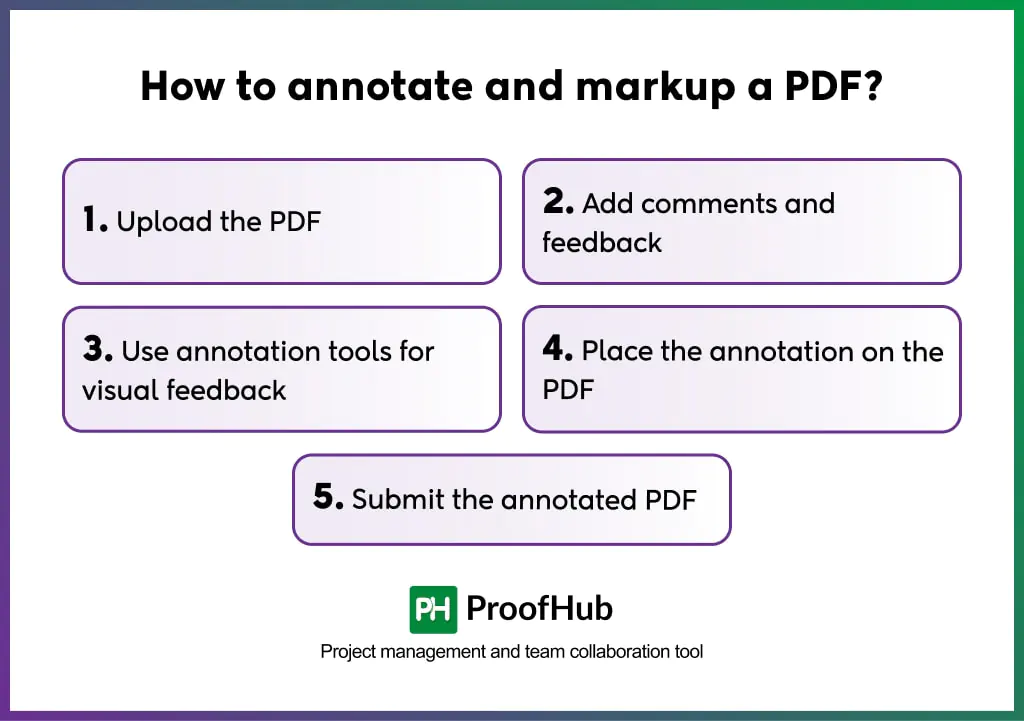
Annotating a PDF generally includes five steps: upload the PDF file to your preferred annotation software, add comments and feedback, use different annotation features for visual markups, place annotations accurately on the document, and share the annotated PDF with relevant stakeholders.
1. Upload the PDF
Start by uploading the PDF to an annotation tool that best complements your review and collaboration workflow.
You can upload both standard PDFs and scanned PDFs to add feedback, comments, and markups without modifying the original file.
2. Add comments and feedback
Thoroughly review the PDF file to add clear, specific comments that explain the required changes or suggestions.
Contextual feedback helps collaborators understand the information they need to understand the issue better, make accurate revisions, and reduce unnecessary back-and-forth during the review process.
3. Use annotation tools for visual feedback
Use annotation tools such as arrows, shapes, drawing tools, highlights, underlines, and strike-throughs to visually indicate the areas that require attention.
These visual markups make it easier for designers to understand exactly what needs to be changed and where the change is required.
4. Place the annotation on the PDF
Position each annotation directly on the exact element or drag it to the appropriate location to ensure there is no confusion about what the feedback refers to.
Precise annotation placement helps collaborators understand the context to implement changes efficiently.
5. Submit the annotated PDF
Once all annotations are added and reviewed, submit or share the annotated PDF with the relevant stakeholders.
You can also mention specific team members to assign and notify them about the required changes.
What are the common mistakes to avoid when annotating a PDF file?
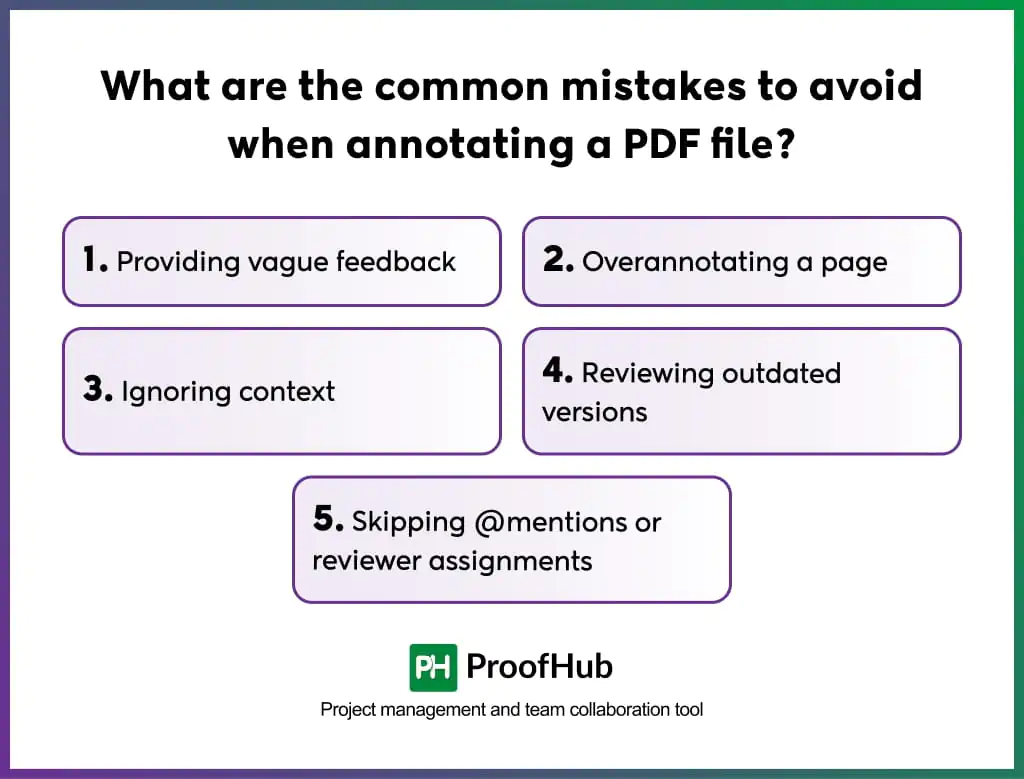
Some common mistakes to avoid when annotating a PDF file are leaving vague feedback, overannotating on a single page, ignoring project context, reviewing outdated versions, and forgetting to assign ownership.
1. Providing vague feedback
Leaving unclear comments creates ambiguity about what needs to be changed and how it should be improved.
It forces collaborators to guess the intent behind the feedback, increasing the chances of incorrect revisions, unnecessary rework, and prolonged review cycles due to constant back-and-forth.
Avoid saying: “Fix this section.”
Write: “Please update this paragraph with the latest pricing information and align the tone with our brand guidelines.”
2. Overannotating a page
Adding too many overlapping highlights, shapes, or comments on a single page creates visual clutter, making feedback difficult to understand and follow.
Collaborators may lose context, overlook important comments, or make changes that do not address the actual requirement.
Best practice: Group related feedback, remove unnecessary annotations, and keep markups focused on the most important changes.
3. Ignoring context
Providing feedback based only on personal preferences instead of established project goals, brand guidelines, or requirements can push revisions in the wrong direction.
This often results in conflicting feedback, repeated changes, and progress going off track.
Avoid saying: “Change the blue color to red. It will look better.”
Write: “Please update the button color to blue because it aligns with our brand guidelines and improves visibility for users.”
4. Reviewing outdated versions
Annotating older file versions wastes review efforts and can cause collaborators to work on changes that have long been addressed or are no longer relevant.
Best practice: Use PDF annotation tools with version history to confirm that everyone is working with the latest document before starting the review process.
5. Skipping @mentions or reviewer assignments
Annotations without assigned owners can remain unresolved because no one knows who is responsible for taking action.
It can also lead to the wrong person making changes without proper ownership, making confusion and delays even worse.
Avoid saying: “Someone should update these images.”
Write: “@Designer, please replace these images with the final approved assets before publishing.”
What are the best practices for effective PDF annotation?
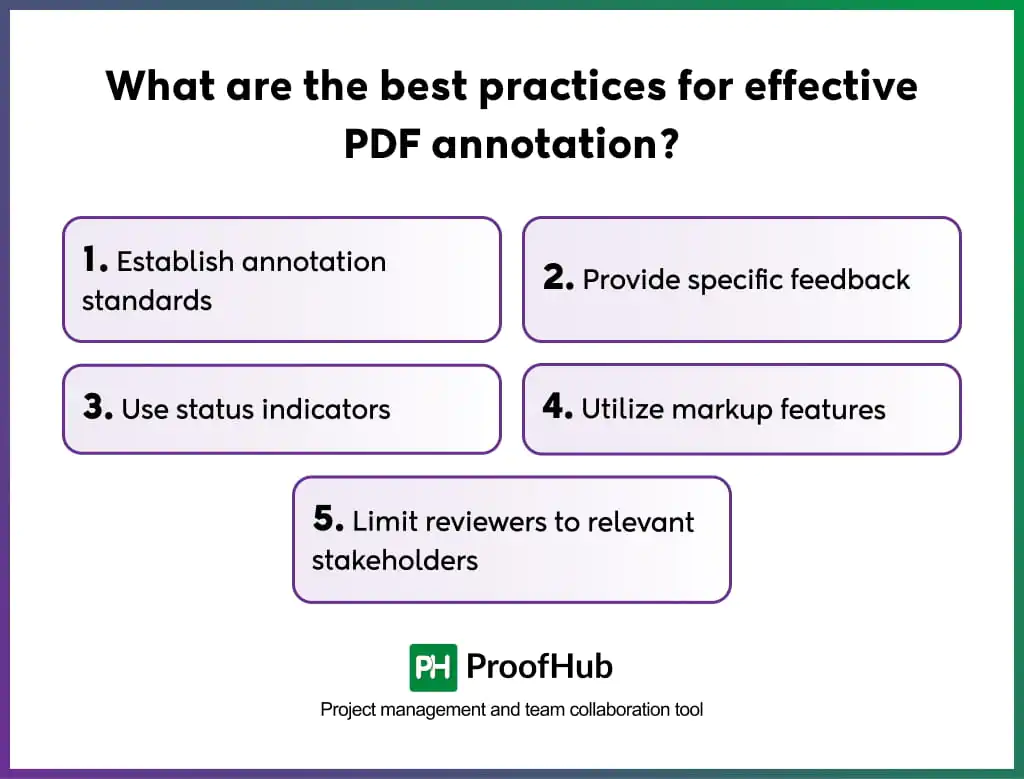
Effective PDF annotation follows clear standards, provides specific and contextual feedback, uses visual markup effectively, leverages status indicators, and includes only relevant stakeholders.
- Establish annotation standards: Define clear annotation guidelines in the beginning to maintain consistency and streamline feedback during the entire process. Everyone should know which annotation tool to use for different types of feedback, such as when to use comments, highlights, arrows, or status labels.
Example: Use highlights for content changes, arrows for design adjustments, and approval stamps to indicate completed reviews.
- Provide specific feedback: Mention specific details, like the exact issue, required change, and the reason behind the suggestion whenever possible. Specific feedback makes it easy for collaborators to understand the requirement without unnecessary follow-up discussions or clarification rounds.
- Use status indicators: Use status labels to communicate the current stage of the PDF file. These indicators reduce confusion and enhance visibility about the current progress of the document.
- Utilize markup features: Use arrows, shapes, and highlights to point out the area that requires attention. Visual markups eliminate ambiguity amongst collaborators by showing exactly where the changes are required.
- Limit reviewers to relevant stakeholders: Include only stakeholders who have a direct stake in the document’s quality or approval to maintain focused review cycles. Including relevant stakeholders in a single review cycle helps keep feedback centralized, ensure accountability, and save time on reconciling contradictory comments from multiple reviewers.
What’s the difference between PDF annotation and markup?
Annotation focuses on providing feedback through context, while markup focuses on visually communicating it.
PDF annotation refers to feedback provided through comments, notes, attachments, or other review elements added to the PDF. It does not always visually indicate the exact location of a requested change and may include contextual references or supporting attachments that provide additional information.
PDF markup is a specialized form of annotation that communicates feedback through highlights, arrows, shapes, or other visual indicators. This approach pinpoints exactly where changes are required, making it easier for designers to understand the feedback and act on it.
Note: PDF annotation and markup are often used interchangeably. The two are closely related concepts for providing feedback, but in slightly different ways.
What is the difference between PDF annotation and PDF editing?
PDF annotation provides feedback on the source file through review annotations, whereas PDF editing involves making actual changes directly in the document.
PDF annotation focuses on identifying issues, suggesting changes, and making recommendations intended to improve the document for final approval.
PDF editing focuses on execution. It involves identifying elements that require modification, implementing those changes to the original content, and creating an updated version of the document.
Which industries benefit most from PDF annotation?
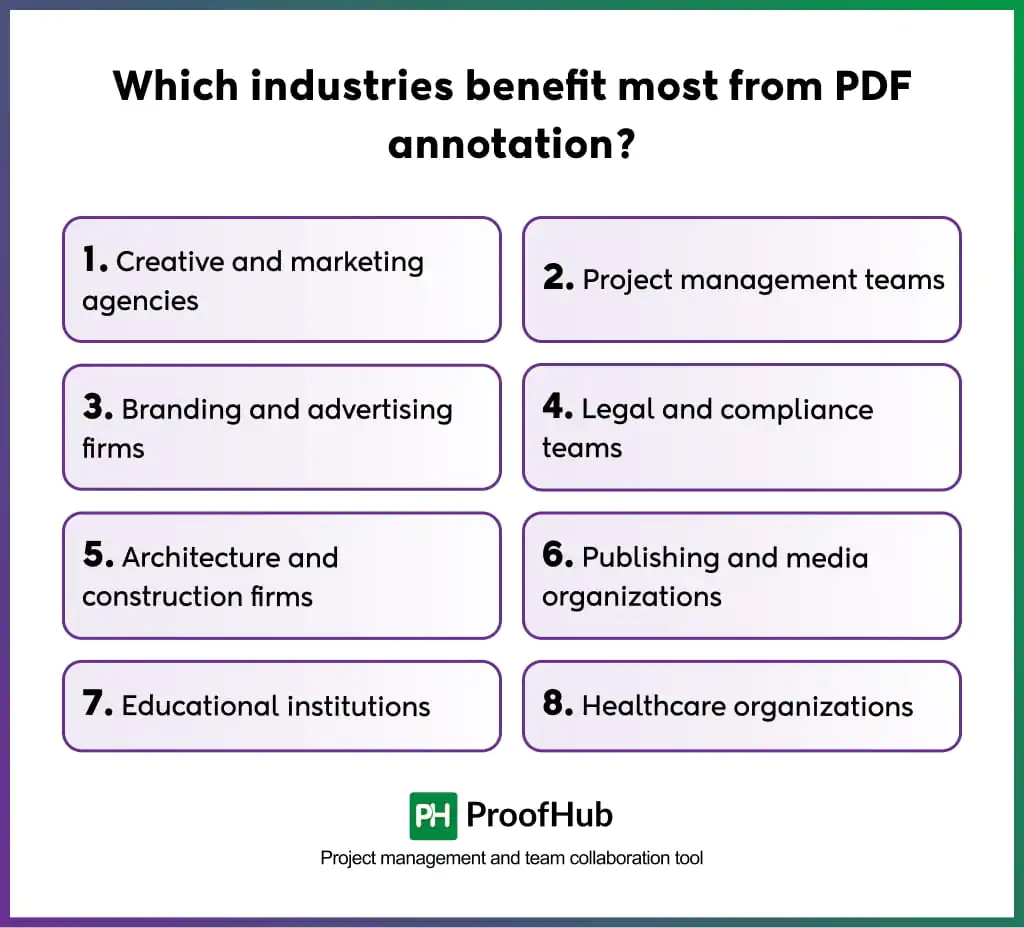
PDF annotation is valuable for any organization that relies on document reviews before the final approval, publication, or distribution.
- Creative and marketing agencies use PDF annotation for design reviews, creative feedback, and approvals.
- Project management teams use annotations to review project proposals, reports, and requirements documents.
- Branding and advertising firms collect feedback on brand guidelines, packaging designs, advertisements, and presentations.
- Legal and compliance teams annotate contracts, agreements, policy documents, and regulatory filings.
- Architecture and construction firms review technical drawings, blueprints, floor plans, and specifications.
- Publishing and media organizations use PDF annotations for editorial reviews, layout approvals, and publication workflows.
- Educational institutions annotate assignments, research papers, course materials, and academic documents.
- Healthcare organizations review patient documentation, training materials, and administrative documents.
Can I annotate a PDF without editing the original content?
Yes, you can annotate a PDF file without editing the original document.
Reviewers can provide comments, notes, markups, and suggestions directly on the source file without making changes to it.
The document owners can further decide which changes to accept, reject, or ignore completely, ensuring the integrity of the main document.
Can I annotate a scanned PDF?
Yes, you can annotate a scanned PDF the same way as a standard PDF document.
A scanned PDF is just like a document of images that reviewers can provide direct comments, notes, and feedback on. By applying OCR (Optical character recognition) to the scanned PDF, reviewers can also select, highlight, and search text elements within the document.