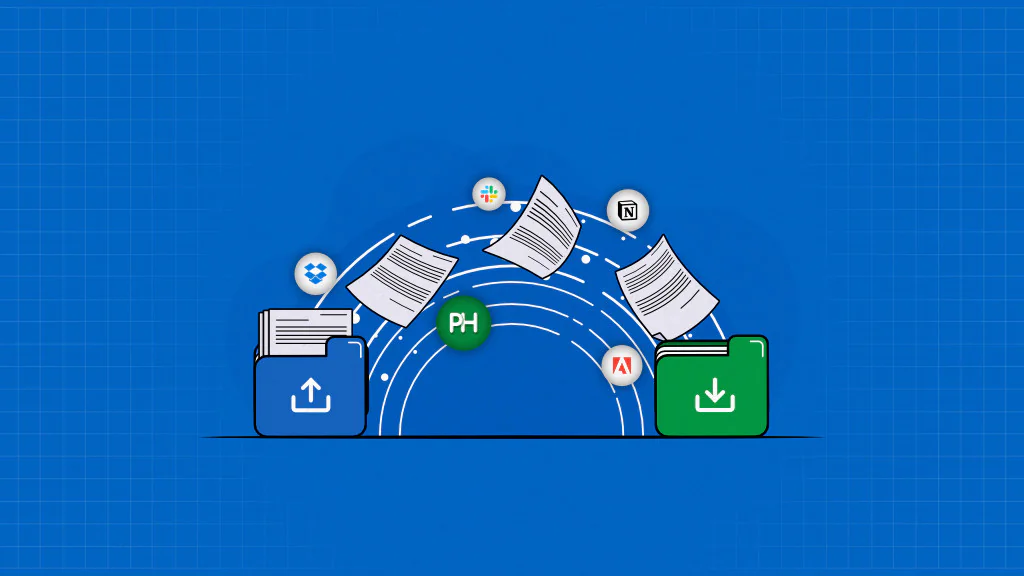
Document collaboration tools create a centralized environment where multiple users contribute to the shared document simultaneously in real time or asynchronously.
By combining document creation, collaboration, review, and governance within a single system, these tools improve coordination, accountability, transparency, and information accessibility across every stage of the document lifecycle.
Instead of relying on email attachments, disconnected file versions, and fragmented communication, document collaboration tools establish a single source of truth for everyone where every revision, feedback, approval, and contributor sanction remains connected. This enables real-time collaboration, preserves organizational knowledge, reduces operational inefficiencies, strengthens document security, and accelerates document workflows.
To support these workflows effectively, a document collaboration tool should offer capabilities such as real-time editing, version control, comments and annotations, cloud storage, permissions and access control, and secured document sharing and management. Some examples include Google Docs, Microsoft Office, ProofHub, and more.
What are document collaboration tools?
Document collaboration tools enable teams and stakeholders to create, edit, review, approve, share, and track changes in a single shared document, without managing separate copies through email or local storage.
These tools provide a centralized workspace where collaborators co-author content, exchange feedback, and make revisions in real time. They support collaborative document workflows through comments, mentions, live cursors, shared access, and version control, enabling teams to work simultaneously while staying aligned.
What are the benefits of using document collaboration tools?
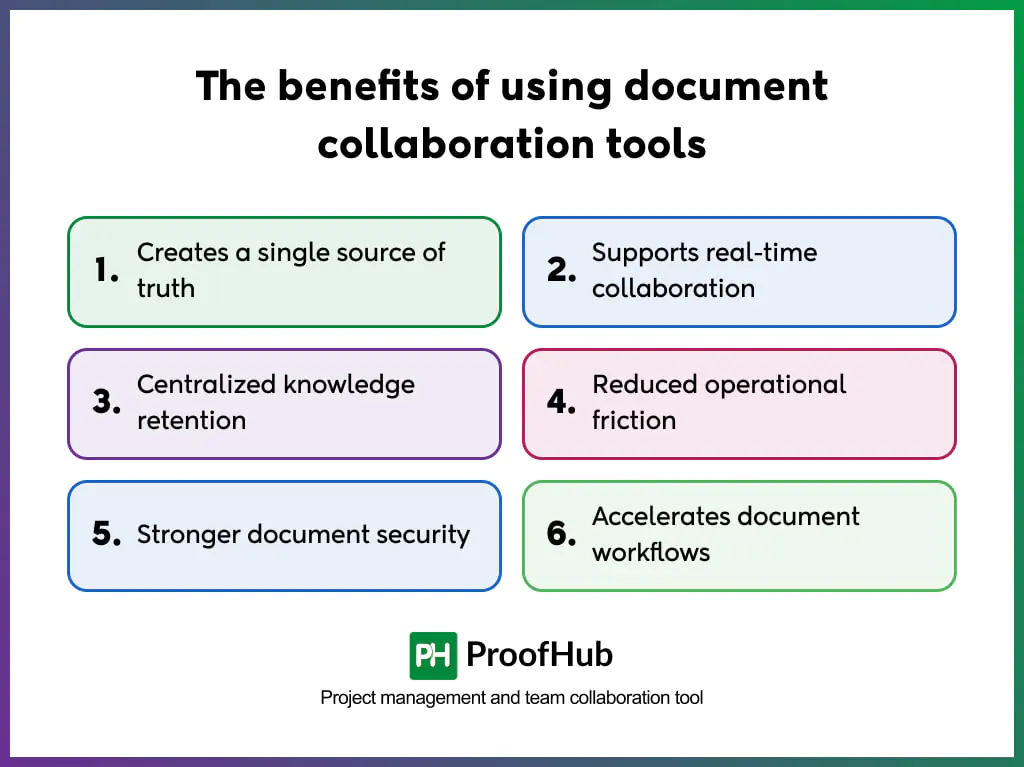
Document collaboration tools improve document-centric work by creating a single source of truth, supporting real-time collaboration, centralizing knowledge retention, reducing operational friction, strengthening document security, and accelerating document workflows.
1. Creates a single source of truth
Users create, co-edit, review, comment on, approve, and revise the same shared document instead of maintaining separate document copies.
This creates a centralized record that preserves every revision, feedback thread, and contributor action, ensuring everyone works from the most up-to-date and accurate information.
2. Supports real-time collaboration
Multiple contributors work on the same document simultaneously without locking files, taking discussions off the document, or creating duplicate versions.
Every edit, comment, and suggestion is synchronized instantly, allowing teams to collaborate continuously while resolving feedback in context.
3. Centralized knowledge retention
Creates a searchable and organized knowledge repository that preserves every aspect of a document’s lifecycle.
Be it revision history, discussions, comments, approvals, contributor actions, or final versions, all information remains connected alongside context that makes it easier to retrieve knowledge, understand past decisions, and prevent knowledge loss.
4. Reduced operational friction
Eliminates inefficiencies that slow down work by centralizing documents and version history, recording contributor activity, and keeping all document-related communication in one place.
Teams spend less time searching for files, reconciling versions, following up on reviews, and coordinating through multiple channels, and more time getting work done.
5. Stronger document security
Every sensitive document shared with external partners, edited by colleagues, or reviewed across teams is protected from unnecessary exposure or misuse through role-based access controls, permission settings, authentication, and activity tracking.
This helps maintain control over document visibility and user actions while preventing sensitive information from being compromised at any stage.
6. Accelerates document workflows
Documents progress faster from creation to approval when using tools that streamline review and collaboration processes.
Everyone works in parallel, makes contributions in real time, provides contextual feedback, and resolves comments instead of waiting for sequential handoffs or fragmented instructions.
This shortens review cycles and keeps work moving through a structured, transparent workflow.
What features should a document collaboration tool have?
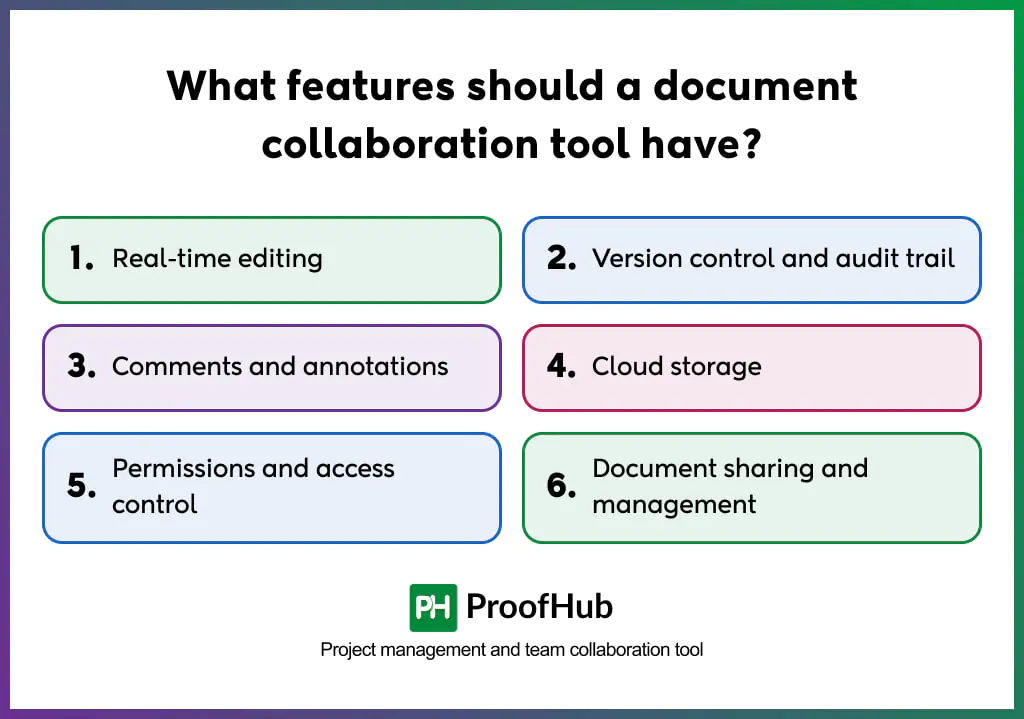
Six key features a document collaboration tool should have include: real-time editing, version history, comments and feedback, cloud storage, granular permission controls, and document sharing and management.
1. Real-time editing
Multiple users should be able to work on the same document simultaneously and see what others are commenting, deleting, and formatting in real-time.
This eliminates the back-and-forth of sending revised drafts, waiting for responses, or the hassle of compiling information from different sources.
2. Version control and audit trail
The tool should preserve every change under labeled versions that are easy to track and refer back to.
Teams access timestamped edits with the contributor’s name, compare versions side by side, and restore any previous version without losing the current state.
3. Comments and annotations
Inline comments, annotations, and threaded replies keep discussions connected to the relevant content, making it easy to follow up and act on.
Contributors should be able to ask questions, suggest changes, and document decisions in context rather than taking them off the document.
4. Cloud storage
Centralized storage gives every contributor access to documents from any device and location. Automatic synchronization ensures changes reflect instantly across all users, so everyone gets to work from the current version at all times.
5. Permissions and access control
Granular permissions help define exactly who can edit, comment, approve, or administer each document.
This limits contributors’ access to the documents relevant to their role, without exposing information that falls outside their scope of work.
6. Document sharing and management
Teams should be able to share documents securely with both internal and external stakeholders through controlled sharing.
Some tools provide invitations, permission-based access, or link-based access controls to keep collaboration consistent without compromising document security.
What are the best document collaboration tools?
Some of the best document collaboration tools are:
1. Google Workspace
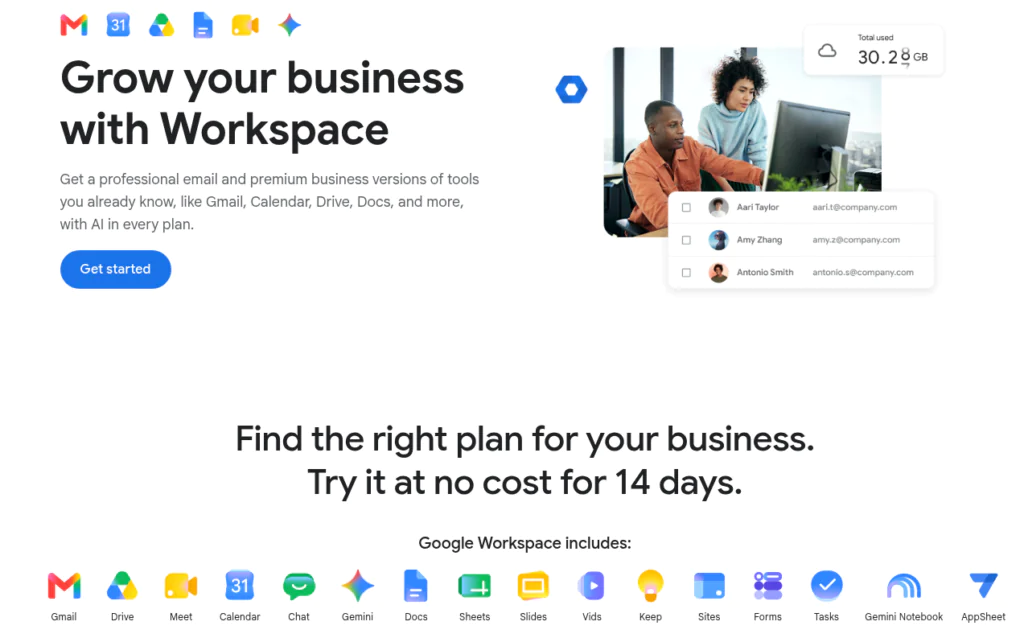
Google Workspace is the most widely adopted real-time document collaboration tool, built for browser-based coordination and cloud-first productivity.
Multiple contributors can coordinate on documents simultaneously with both internal and external collaborators through secure link sharing and granular permission controls.
Features
- Real-time co-editing: Teams can edit the same document while viewing live cursors, color-coded contributor indicators, and changes as they happen.
- Comments and suggestions: Attach comments to specific text or section and provide suggestions that collaborators can choose to accept or reject without modifying the original content.
- Version history: View and compare previous versions of documents with date and timestamped changes, alongside author information.
Pros
- Simple and intuitive interface.
- Stronger sharing controls.
- Automatically saves changes in real time and maintains a version history.
Cons
- Limited advanced features and functionality.
- Offline editing is available only when offline access.
Pricing
- Starter: $4.90/user/month on annual billing
- Standard: $9.80/user/month on annual billing
- Plus: $15.40/user/month on annual billing
- Enterprise: Contact the sales team for enhanced support and endpoint management
2. Microsoft 365 (Word + Sharepoint)
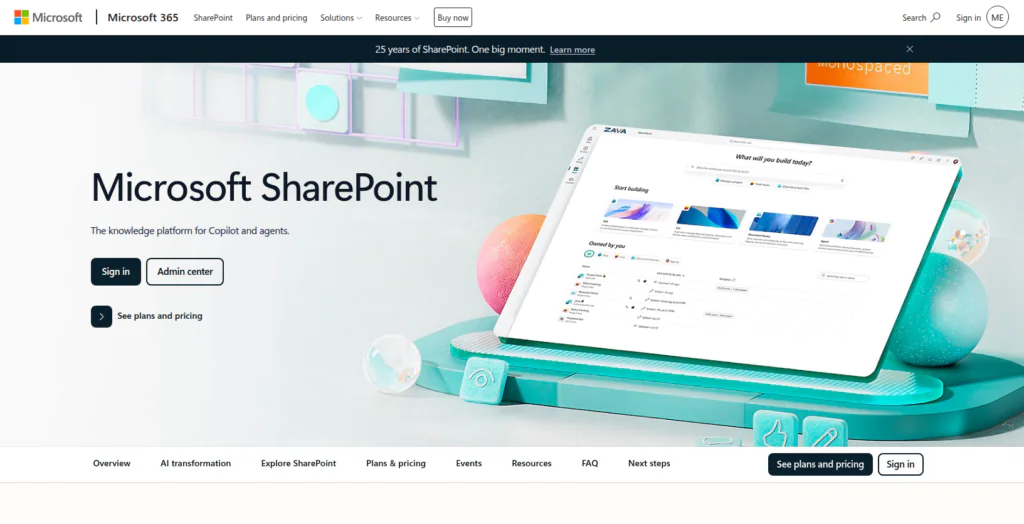
Microsoft 365 is an enterprise-grade collaboration platform that combines productivity applications with cloud-based collaboration and storage.
It brings documents, communication, file storage, and enterprise security together within the Microsoft ecosystem.
Features
- Co-authoring: Multiple users can edit files simultaneously, alongside naming cursors and contributor presence.
- Track changes and compare: Reviewers can track changes, compare document versions, and accept or reject revisions.
- Microsoft Teams and SharePoint integration: Collaborate on documents directly within Microsoft Teams while SharePoint provides centralized document storage.
Pros
- Familiar user interface.
- Offers deep compatibility across the Microsoft ecosystem (Teams, Outlook, OneDrive).
- Word, Excel, and PowerPoint can be used for free on the web (with a Microsoft account.)
Cons
- Initial configuration can feel complex.
- Higher cost at scale.
Pricing: The three pricing plans for the Business suite are:
- Microsoft 365 Business Basic: $6/user/month when paid yearly
- Microsoft 365 Business Standard: $12.50/user/month when paid yearly
- Microsoft 365 Business Premium: $22/user/month when paid yearly
Note: Microsoft 365 E3 starts at $36/user/month when billed annually.
3. Notion
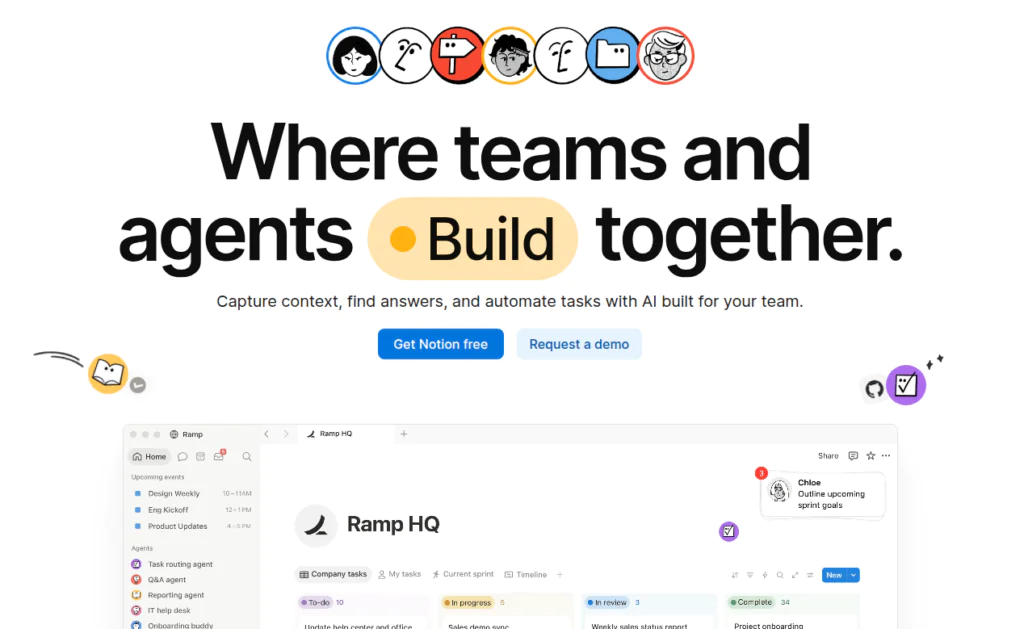
Notion is a decent document collaboration platform that enables teams to create and collaborate on documents, wikis, and knowledge resources.
Bringing everything together in one centralized space, it makes it easy to scale collaboration without losing context.
Features
- Wikis: Create a centralized space for consolidating your entire business knowledge in one searchable place.
- Comments and mentions: Collaborate through inline comments and @mentions to gather feedback and notify team members.
- Toggles: Collapse and expand sections to focus on the most relevant information.
Pros
- Extensive template library.
- Supports over 50 content types, including tables, databases, and code blocks.
- Easily embeds rich media such as images and videos from Loom and YouTube.
Cons
- Steep learning curve for new users.
- Can become disorganized if not maintained.
Pricing: Notion offers four pricing plans
- Free: Free for personal use
- Plus: $10/member/month (annual billing)
- Business: $20/member/month (annual billing)
- Enterprise: Contact the sales team for advanced security and controls
4. Confluence
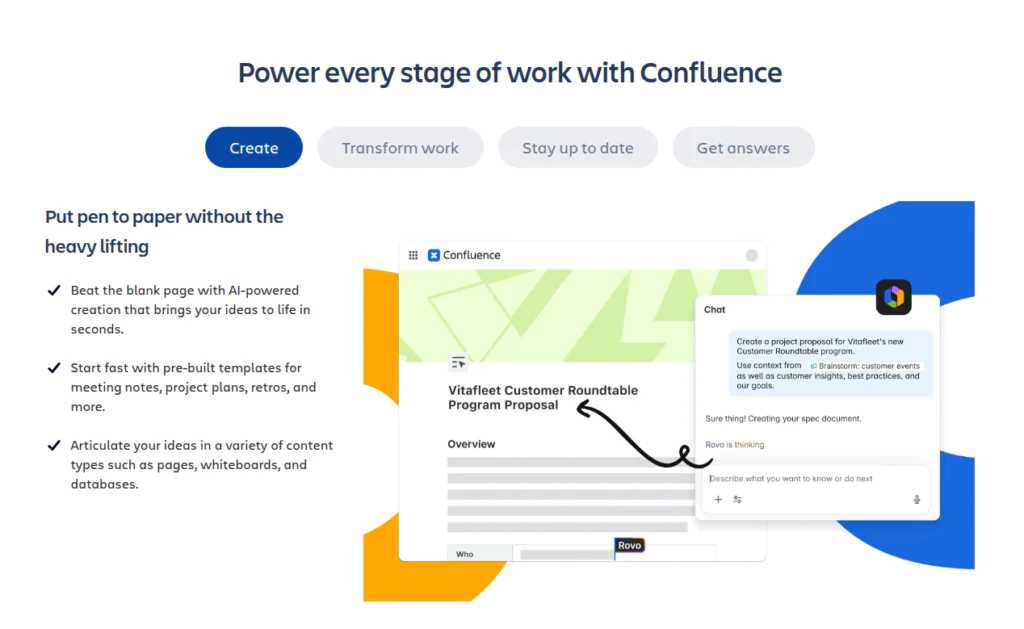
Confluence by Atlassian is a collaborative documentation workspace designed for engineering, product, and cross-functional teams.
It helps organizations create, organize, and share documentation, project knowledge, and technical content in a centralized workspace.
Features
- Structured pages: Create structured documents where teams can take notes, co-edit content, refine ideas, and collaborate using inline and page comments.
- Confluence space: Organize and access your documentation across teams, projects, and goals with intuitive hierarchy.
Macros: Add dynamic content such as tables, roadmaps, status, and other interactive elements directly to pages.
Pros
- Well-suited for creating and managing technical documentation.
- Offers deep integration with the Jira and Atlassian ecosystem.
- Rich templates make it easy to organize documents.
Cons
- The interface may look complex.
- Learning curve for non-technical users.
Pricing: Pricing varies across different user tiers.
- Free: Free forever for 10 persons
- Standard: $680 per year for up to 10 people
- Premium: $1300 per year for up to 10 people
- Enterprise: Contact the sales team when your user base increases to 801 or above
5. Superhuman Docs
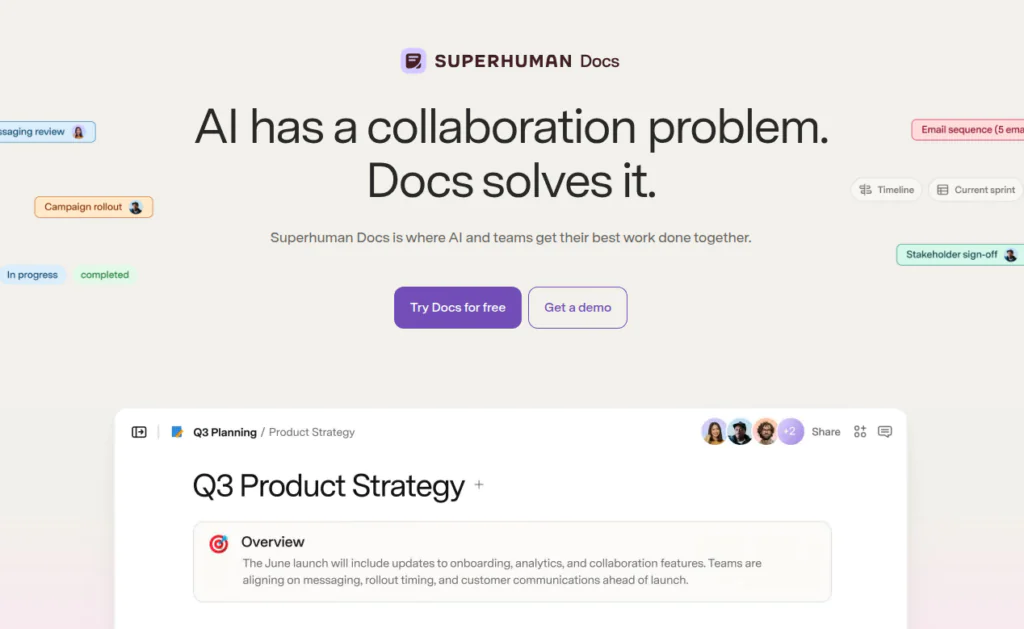
Superhuman Docs, formerly known as Coda, is a collaborative workspace that allows multiple users to collaborate in one place.
It combines documents, spreadsheets, databases, and workflows into a single platform for greater control over operations. It is a part of the broader Superhuman suite that includes Go, Grammarly, and Mail.
Features:
- Workspace: A shared space to store and organize your docs.
- Live connected data: Automatically syncs tables from external tools directly into documents.
- Doc sharing and locking: Share documents directly, through folders, or via secure links, while restricting edits by locking specific sections, pages, or entire documents.
Pros
- Reduces tool-switching.
- Supports 800+ integrations with two-way sync.
- Highly customizable for building collaborative workflows.
Cons
- Can be expensive for teams.
- May require time to configure properly.
Pricing: Coda offers four plans, including
- Free: Free with limited support for objects and rows for shared docs
- Pro: $10/month per Doc Maker (annual billing)
- Business: $30/month per Doc Maker (annual billing)
- Enterprise: Contact the sales team for custom pricing
Note: Editors are free in all plans.
6. Dropbox + Paper
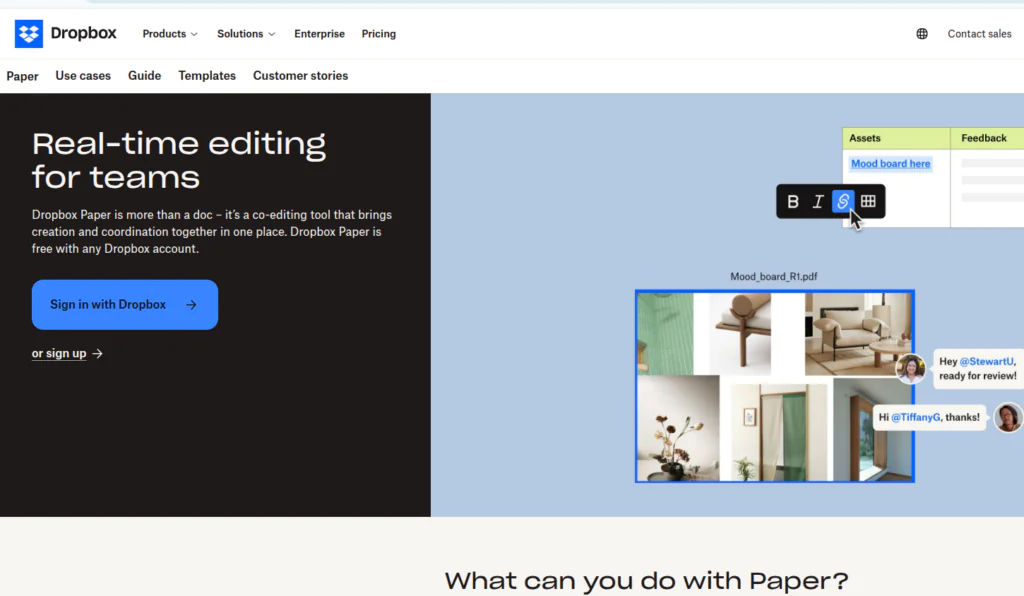
Dropbox + Paper combines cloud storage with a collaborative document editor to create, organize, share, and coordinate on documents from a centralized workspace. Teams can co-author documents, mention collaborators, and leave feedback without switching between apps.
Features
- Task assignment: Create and assign tasks with due dates directly from documents.
- Multimedia embedding: Embed Youtube video, GIF, Pinterest board, Google Map, and other rich media directly into documents.
- PDF edits and signatures: Edit, annotate, and send PDFs for electronic signatures without converting files or using additional software.
Pros:
- Simple and clean interface.
- Can assign tasks and mention people right from the doc.
- Offers pre-built templates for meeting notes, creative briefs, brainstorm ideas, and more.
Cons
- Some users complain Dropbox does not sync real-time edits.
- Dropbox’s storage tiers force a disproportionate cost jump.
Pricing:
- Professional: $16.58//month for 1 person and 3 TB storage
- Standard: $15/user/month for 3 TB storage
- Advanced: $24/user/month for 15 TB storage
- Enterprise: Contact the sales team for pricing
Note: Paper comes free with all Dropbox accounts.
7. ProofHub
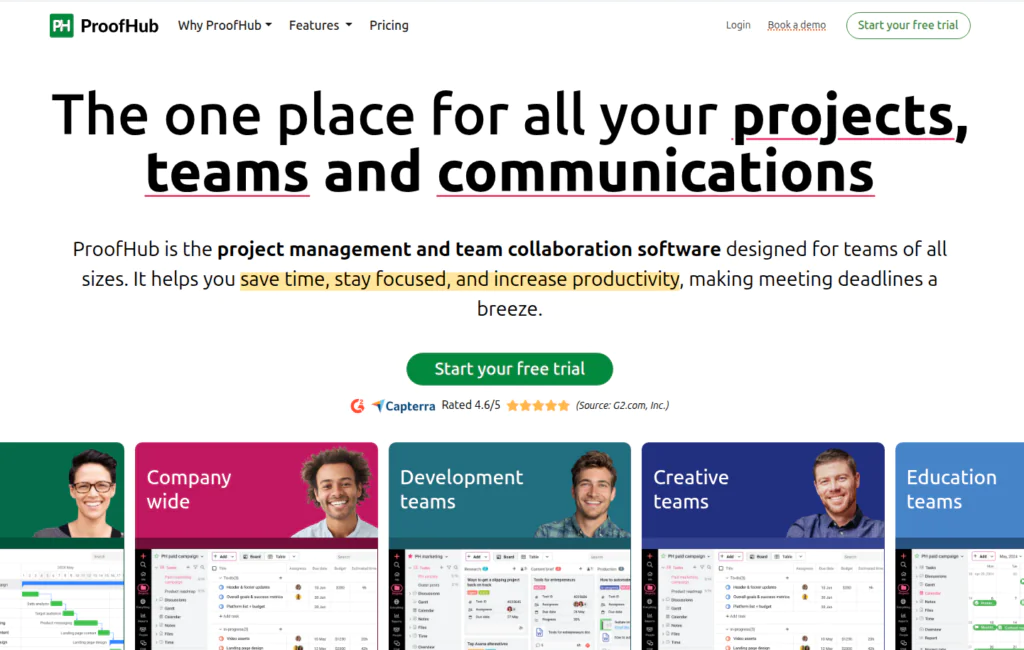
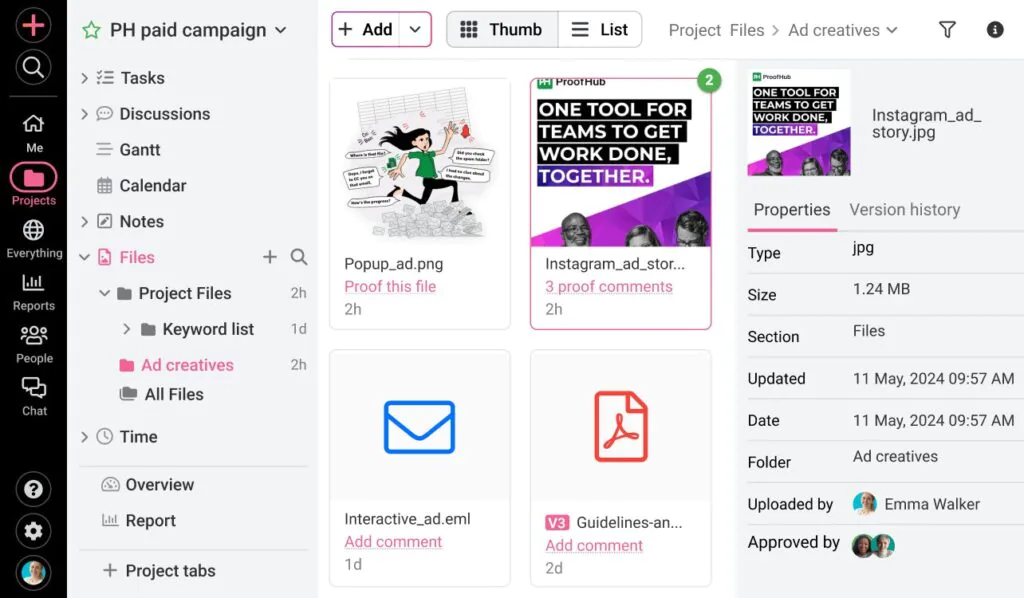
ProofHub is a project management solution that supports team collaboration and document management in one centralized workplace. It is great for teams where document collaboration functions as part of large project workflows, connecting everything to keep work running smoothly.
Features
- File management: Organize, share, and attach documents to the work, while storing them in one space.
- Notes: Create, collaborate, and organize SOPs, project documentation, meeting notes, and team knowledge.
- Proofing: Review creatives and documents, annotate and leave feedback, and approve revisions directly.
Pros
- Combines project management and document collaboration.
- Connects documents with tasks, discussions, workflows, and projects.
- Flat pricing solution with unlimited users.
Cons
- Not a dedicated document editor.
- Less suitable for document-heavy workflows without a project context.
Pricing: ProofHub offers two flat-fee pricing plans with unlimited user access.
- Essential plan: $45/month on annual billing
- Ultimate Control plan: $89/month on annual billing
No credit card required
Best practices for effectively using document collaboration tools
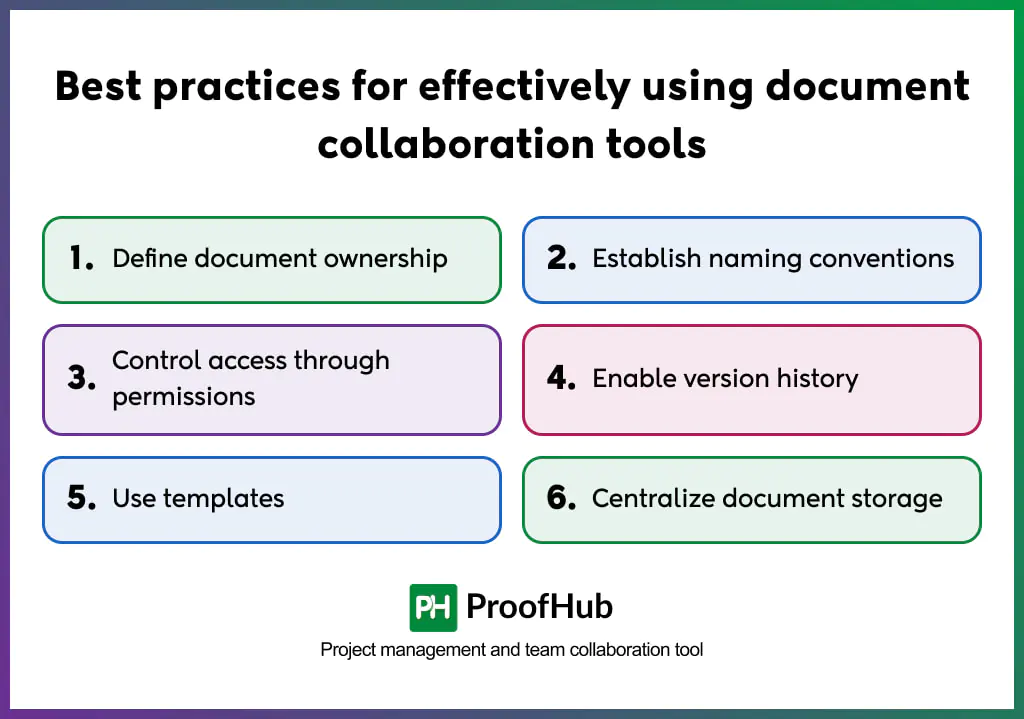
Effective usage of document collaboration tools starts with defining document ownership, establishing standard naming conventions, controlling access through permissions, enabling version history, using templates, and centralizing document storage.
- Define document ownership: Assign a defined owner to every document, who would be responsible for maintaining its accuracy, quality, and relevance throughout the lifecycle. This ensures every document has someone accountable for its timely completion.
- Establish naming conventions: Create consistent naming standards that everyone follows to organize documents logically. It builds a shared knowledge structure that makes it easy to identify, locate, and retrieve documents immediately, especially as the document repository grows.
- Control access through permissions: Grant access based on roles and responsibilities to protect sensitive information and maintain document integrity. It limits editing rights to concerned contributors, while allowing others to view, comment, or approve documents based on responsibilities.
- Enable version history: Maintain document versions within the same file instead of creating duplicate copies for every revision. Version history preserves both context and a record of changes, allowing teams to understand what changed, who made the changes, why they were made, and to restore previous versions when needed.
- Use templates: Create templates for frequently used documents such as proposals, contracts, reports, or meeting notes. Templates save teams setup time, reduce repetitive formatting, and keep documents consistent with organizational structures and established standards.
- Centralize document storage: Store all documents in a shared space instead of distributing them across personal devices, email attachments, or multiple storage locations. When a document is needed, every authorized contributor gets immediate access to the current version and interacts with it based on their assigned permissions.
How to select a document collaboration tool for your team?
Selecting a document collaboration tool requires evaluating five considerations: business needs, required features, ease of adoption, storage and document management capability, and cost of scalability.
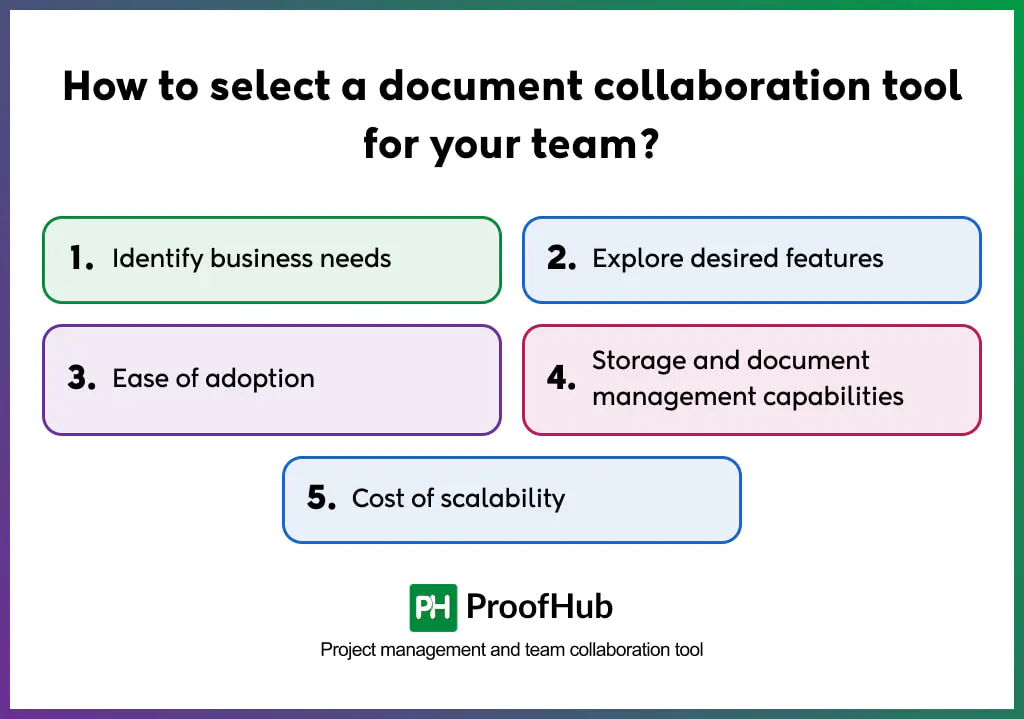
1. Identify business needs: Start by assessing your team size, document volume, contributor roles, and collaboration frequency to understand the level of coordination your work requires. Evaluate current business workflows and processes to identify where collaboration breaks down, and select a tool that fills that gap.
2. Explore desired features: Look for the features that best suit your team’s workflow. Depending on your requirements, prioritize capabilities such as proofing tools, comments and mentions, version and access control, document sharing, audit trail, and permission levels. Separate your negotiable and non-negotiable baseline requirements before evaluating any tool.
3. Ease of adoption: Choose a tool with an intuitive interface and minimal learning curve so teams start collaborating without any excessive onboarding or formal training. It should be easy enough to adopt, so teams use it consistently without any resistance from day one. Evaluate the tool’s compatibility with existing tools also.
4. Storage and document management capabilities: Evaluate each tool’s storage capacity, document organization, file size limits, version history, and retention or archiving policies to determine how well the tool performs at scale. Because storage capability is equally critical to collaboration features.
5. Cost of scalability: Look for a reliable and budget-friendly solution that grows with your team without compromising cost. The tool’s structure should be able to accommodate increasing numbers of users and documents volume without requiring a plan upgrade at every stage of growth.
What is the difference between document management and document collaboration?
Document management is the practice of storing, managing, and retrieving documents, while document collaboration is an active process where multiple users create, review, edit, and refine those documents together.
A document management system (DMS) creates a central record where organizations can store documents, organize them into folders, enforce permissions, apply retention policies, and control access. The primary purpose is to ensure documents remain secure, searchable, and easy to retrieve throughout their lifecycle.
Document collaboration focuses on how teams work on these documents. It enables multiple users to co-author content, review drafts, exchange feedback, resolve comments, track revisions, and approve documents within a single shared workspace. The goal is to improve coordination among contributors without unnecessary communication gaps and overhead.
Can document collaboration tools improve team productivity?
Yes, document collaboration tools improve team productivity. They centralize every stage of the document lifecycle, from creation and collaboration to review, approval, and versions.
It saves teams time spent on managing manual handoffs, reconciling version conflicts, searching for information, following up through emails or chat messages, and performing routine administrative tasks, allowing teams to focus more on doing high-value work.