In creative projects, a single overlooked detail can hinder an entire campaign. An outdated logo, a low-resolution image, or one ignored comment can mean a reprint, a delayed launch, or an awkward call with the client. These errors rarely come from poor design. They come from a review process where feedback sits in too many places and nobody can say which file is the final one.
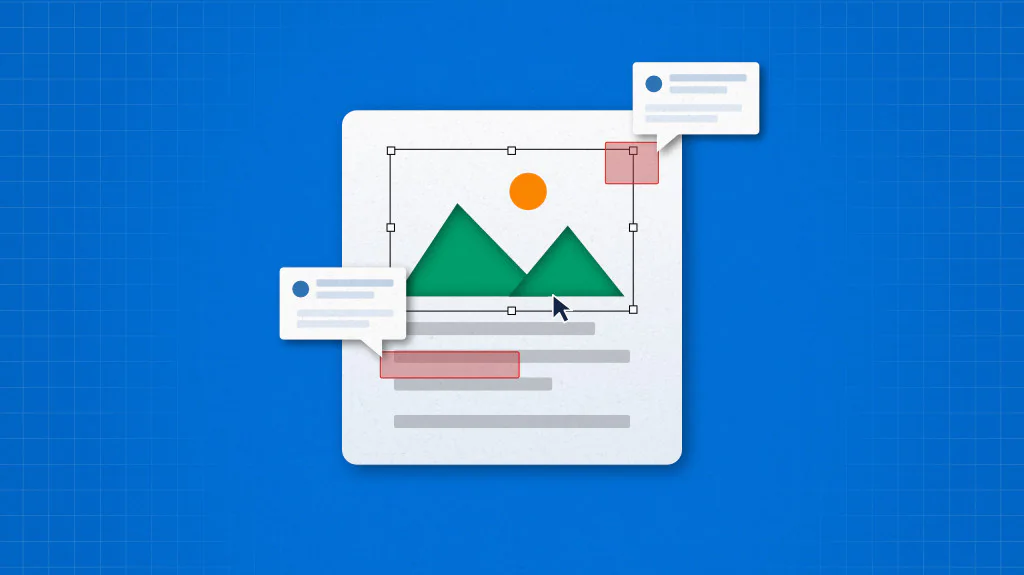
This is where “Proofing software” comes into light. Reviewers can pin comments directly on the image, each comment stays tied to the version it was made on. The software is important nowadays to the creative and marketing team, allowing its users for an ideal collaboration.
Here in this guide, let’s learn more about this software. The guide will cover everything about the software, key features, how it works and it will also cover why you need it and how to choose the right proofing software.
- 1.Proofing software keeps every comment, version, and approval attached to the file, so feedback never gets scattered across email and chat.
- 2.Centralized review cuts extra rounds, since every reviewer sees the same comments and conflicts get resolved early.
- 3.Version control means reviewers always work on the latest draft, and no one approves an outdated file.
- 4.Pinned annotations, assigned roles, deadlines, and automatic reminders make feedback precise and keep approvals moving.
- 5.Choose a tool by starting with your file types, reviewers, and review volume, then test it on a real project before committing.
- 6.Avoid common mistakes such as adding too many reviewers, skipping approval roles, and sending feedback by email instead of in the tool.
What is proofing software?
Proofing software is an online tool that brings the review and approval of design files into one place. Reviewers mark up images or layouts directly, and every comment stays attached to the version it was made on.
Designers see all feedback together, so they never have to compare emails and chat messages. Approvals are saved with a name and a date, which removes doubt about the final file. Because everything happens in the browser, teams can review together from any location or time zone.
Why do you need proofing software?
Traditional reviews run through email threads, chat messages, printed markups, and meetings, which scatter feedback across four channels. Teams collect conflicting comments, reviewers edit outdated files, and nobody confirms who approved what.
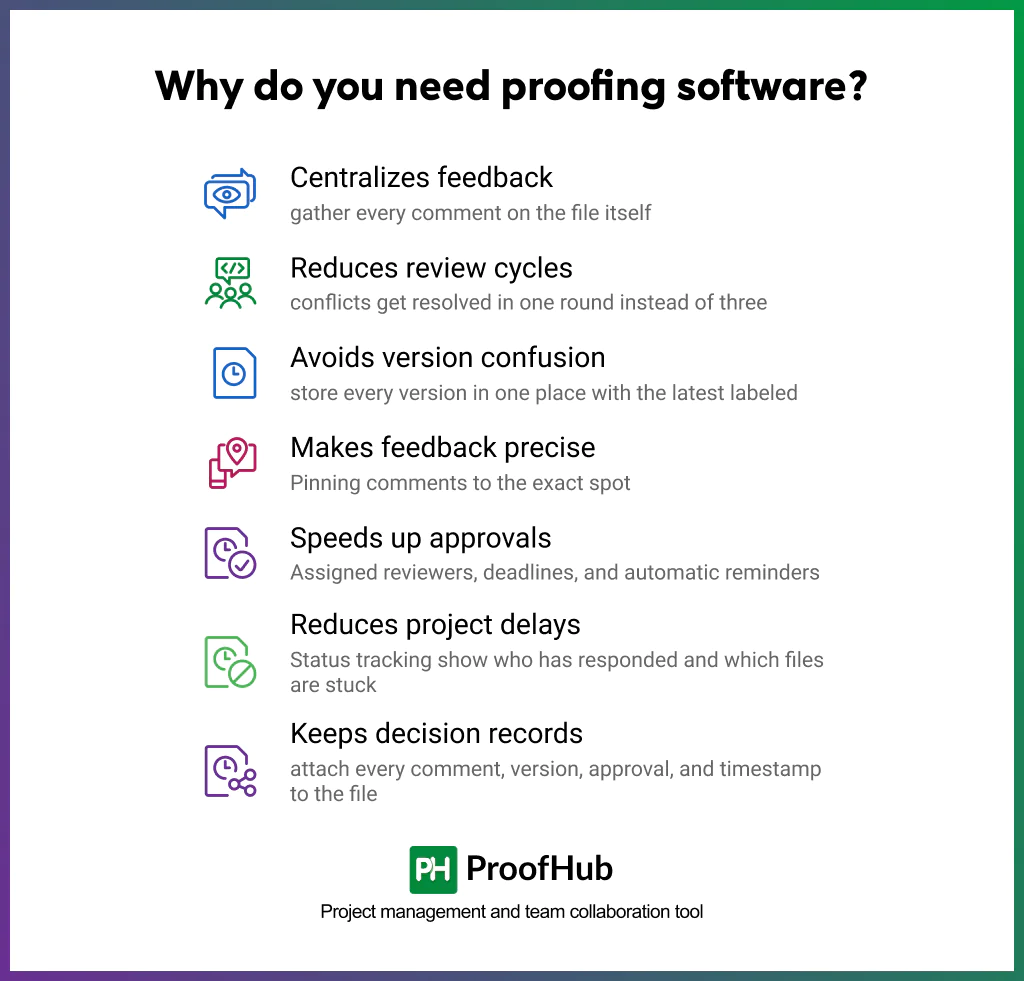
Proofing software brings the review process into one centralized environment, where files, comments, versions, and approvals live together. That is why teams need it:
- Centralizes feedback: All comments from all reviewers appear on the design file itself, not in emails or chats. The designer works from one place and does not have to compare different notes. Reviewers can also see each other’s comments. This stops repeat requests and shows disagreements early, before the designer starts making changes.
- Reduces review cycles: When all feedback comes together in one place, the designer can fix everything in one go instead of several rounds. Extra rounds usually happen because comments are unclear or missed. A shared comment list that shows which comments are done solves both problems. Teams spend less time redoing work.
- Avoids version confusion: Every comment is linked to the version of the file it was written on. Each new upload is saved as a new version of the same file, so reviewers always see the latest design. Side-by-side comparison shows what changed. This stops people from approving or sending out an old file by mistake.
- Makes feedback more precise: Vague notes like “fix the header” force designers to guess. Pinning comments to the exact spot on an image, video frame, or document line is needed so each note can be acted on without follow-up questions.
- Speeds up approvals: Reviewers get automatic reminders, and managers can see who has not replied yet. Approving takes one click on the file, so nobody has to search for an old email. Setting a due date for each review stage keeps things moving, and sign-offs do not get stuck waiting on one person.
- Reduces project delays: Clear feedback, version control, and quick approvals remove the most common reasons for delay. A dashboard shows the status of each file and which reviewers are still pending. Managers can step in early and reassign reviewers or adjust the schedule, so one missed review does not push back the launch date.
- Keep a record of decisions: Every comment, change, and approval is saved with a name and a date. This gives the team a full history of each file. If a client questions a decision later, you can show who approved what, and when. This helps avoid disputes and keeps the team accountable.
What features should proofing software have?
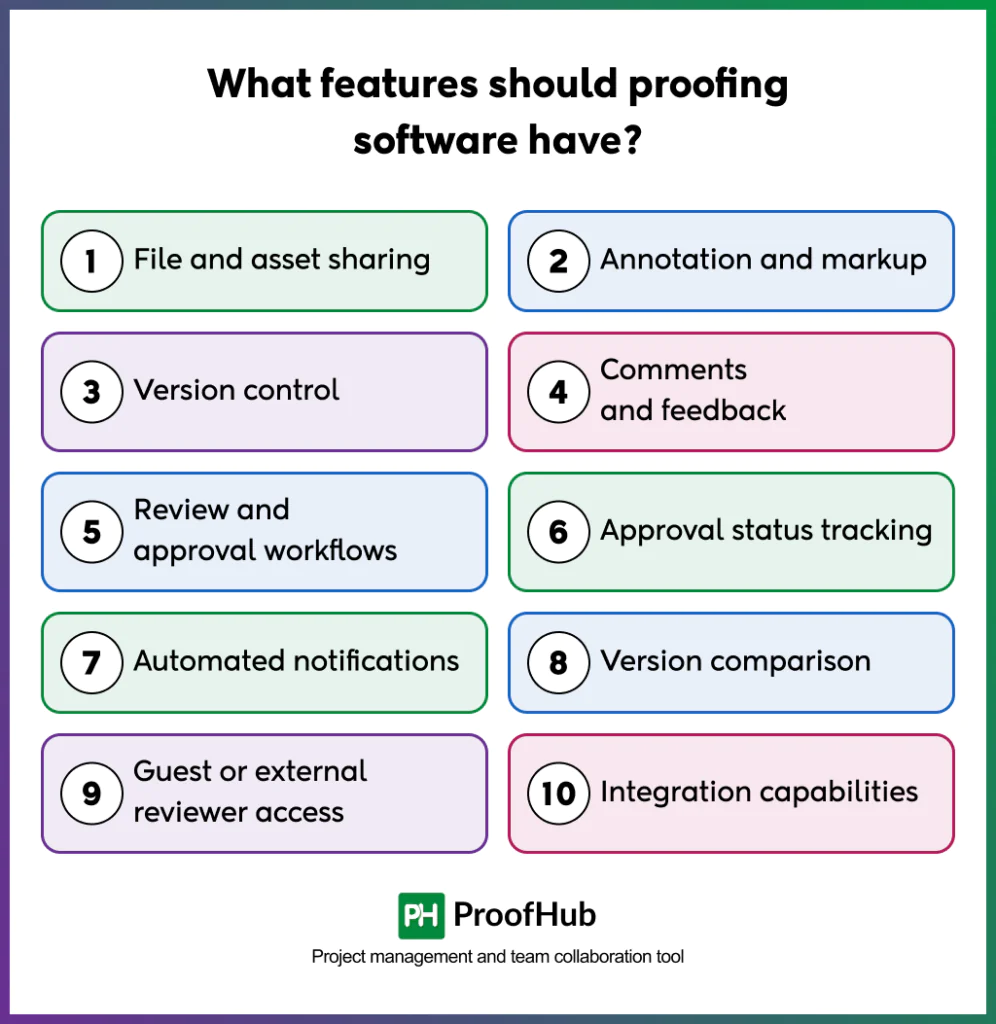
Proofing software should have ten core features: file and asset sharing, annotation and markup, version control, comments and feedback, review and approval workflows, approval status tracking, automated notifications, version comparison, guest or external reviewer access, and integration capabilities.
Teams that run 20 or more reviews a month need all of these working together, because a gap in one slows the whole cycle. A tool with annotation but no version control, for example, still leaves reviewers commenting on outdated files. Match the feature set to review volume and the file types the team handles.
Here is what to expect from each feature.
- File and asset sharing: Look for support for images, PDFs, and layouts in their original formats, shared through a single link. Wide format support and generous file size limits mean designers never convert files before review.
- Annotation and markup: A good platform lets reviewers pin comments on the exact spot using arrows, shapes, highlights, and text. Precise markup shows designers what to fix and where. For video and audio, comments attach to a specific timestamp or frame.
- Version control: Every upload is stored as a new version of the same file, with all earlier versions kept. Reviewers land on the latest version by default, which stops outdated files from being reviewed, approved, or sent to print.
- Comments and feedback: Threaded replies, @mentions, and a resolve option on every comment are essential. Designers see which feedback is open and which is done at a glance, so comments no longer get lost between emails and chats.
- Review and approval workflows: The platform should support custom review stages, reviewer assignments, and a set order of sign-off. Each file reaches the right person at the right time, so reviews move forward without manual follow-ups.
- Approval status tracking: A clear status view shows which files are approved, pending, or need changes, and who has yet to respond. Managers spot bottlenecks early and act before a deadline is at risk.
- Automated notifications: Alerts when a file is ready, reminders as deadlines near, and updates when comments or approvals arrive do the chasing automatically. Reviews keep moving without manual follow-up emails or a project manager nudging each person.
- Version comparison: Side-by-side or overlay views show exactly what changed between two versions. Reviewers confirm their earlier comments were addressed without rechecking the whole design.
- Guest or external reviewer access: Clients and outside partners should get a simple review link, with no account needed. Permission controls, password protection, and expiry dates keep internal files and confidential work protected.
- Integration capabilities: Strong tools connect with project management software, cloud storage, and design applications. Files and updates stay in sync, and designers skip manual uploads.
How to use a proofing software?
Proofing software moves a file through seven steps: upload file, share and assign, review and annotate, resolve feedback, submit a new version, approve the final version, and complete the project. Each step keeps comments, versions, and decisions attached to the file, so the entire review stays in one place.
Here is how proofing software works from start to finish, using ProofHub as an example.
1. Upload file
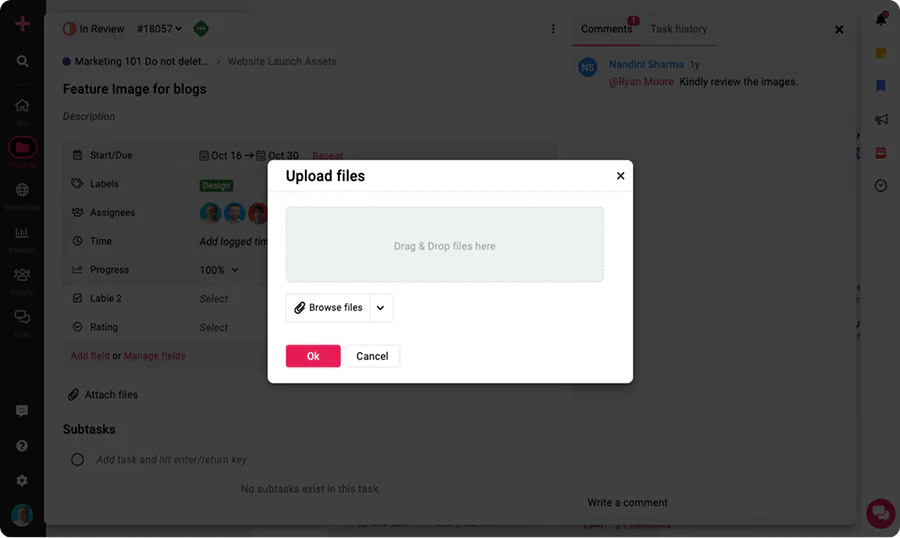
Start by uploading the file to the proofing workspace. Also users can drag and drop the files, images, or PDFs into the project, and the tool will save them in their original format. Add a title and short description so the reviewer knows what to check. Each file gets its own review space from the first upload.
2. Share and assign
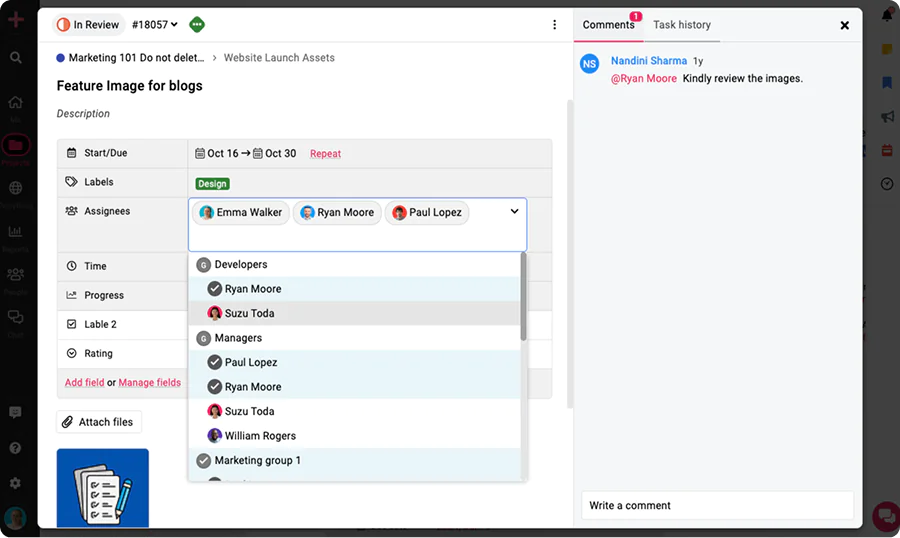
Select and tag who needs to review the file and assign them directly. Add team members, clients, or outside partners, and set a due date for their feedback. Reviewers receive a notification right away, so they know what to check and by when. Clear ownership prevents delays caused by unclear responsibility.
3. Review and annotate
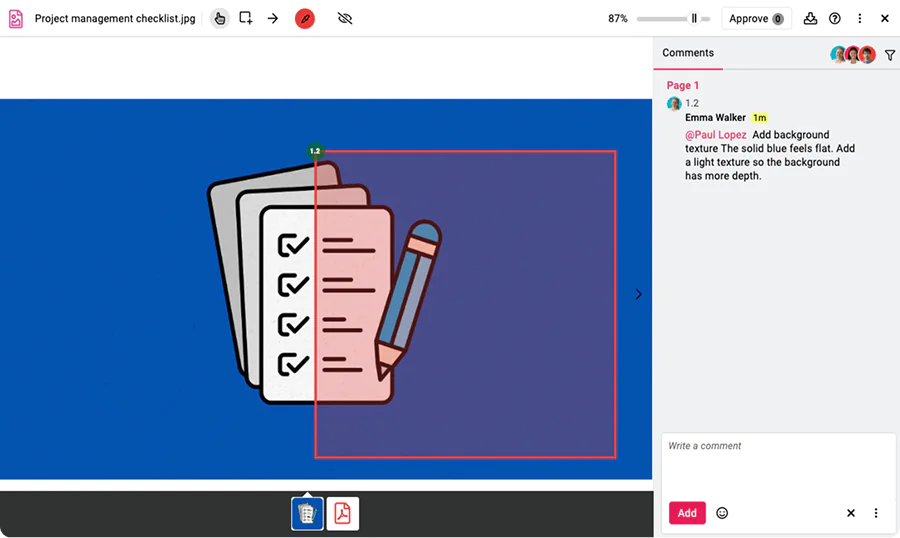
Reviewers can easily open the file in the browser and mark changes directly on the design. They can pin comments to an exact spot using arrows, shapes, and highlights, and add text notes where needed. Reviewers can read each other’s comments, which avoids repeat requests and shows conflicting opinions early.
4. Resolve feedback
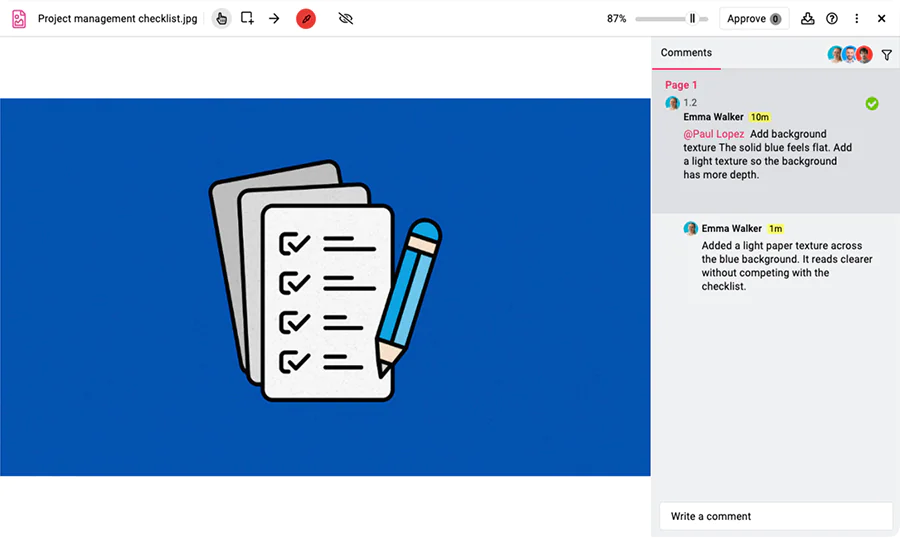
Work through the comments one by one, make the changes, and mark each comment as resolved. Use replies to ask questions when a note is unclear. The comment list shows what is done and what is still open, so nothing gets missed before you move to the next version.
5. Submit a new version
Upload the updated design as a new version of the same file. The tool keeps all earlier versions and sets the newest one as the default view. Reviewers can compare versions to confirm their changes were applied. Repeat steps 3 to 5 until the design meets everyone’s expectations.
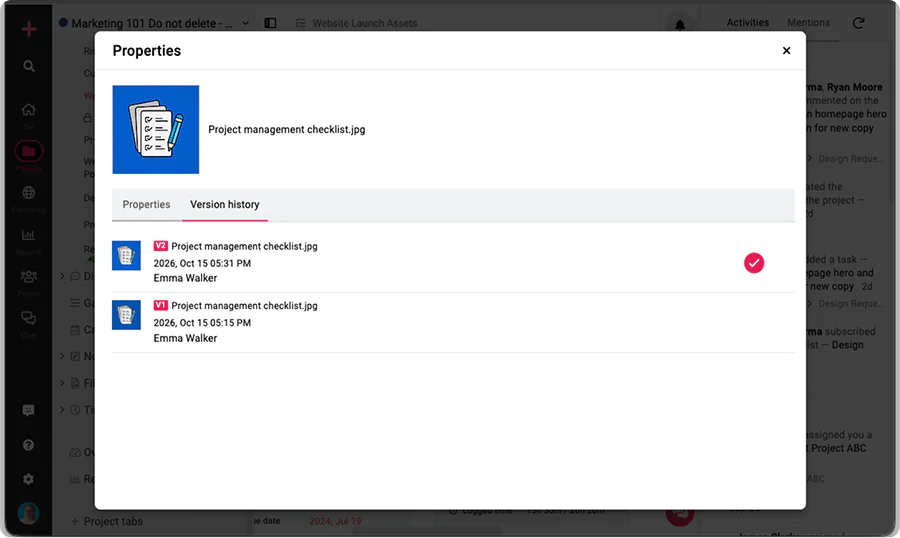
6. Approve the final version
When the design is ready, reviewers approve it with one click. Each approval is saved with a name and a date, which gives you a clear record of who signed off. If the file needs more changes, reviewers can request them instead. Only the approved version moves forward to production.
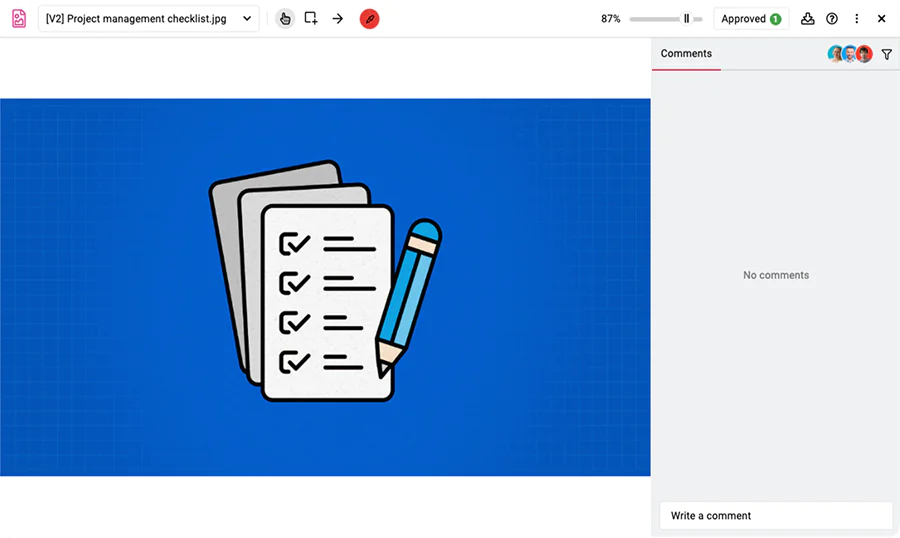
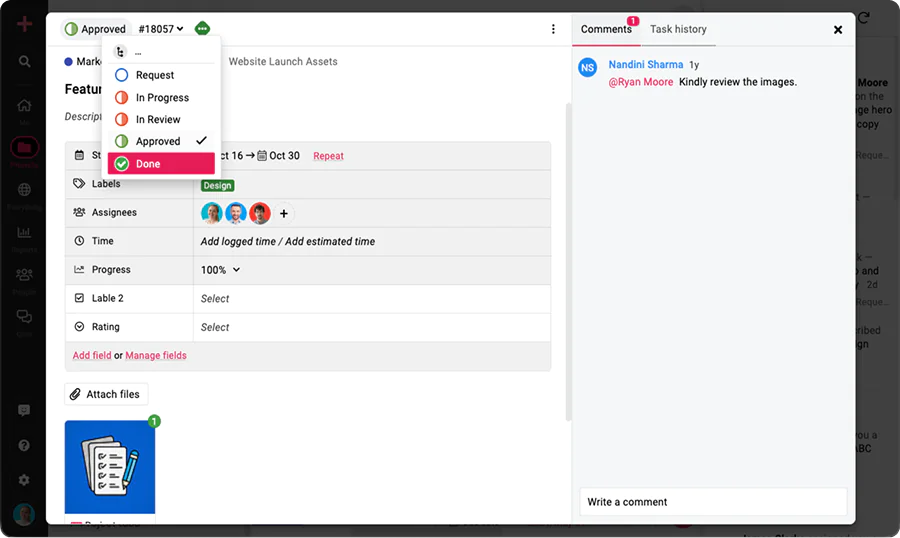
7. Complete the project
With final approval in place, close the proofing task and move the file to its next stage, such as publishing, printing, or client delivery. The approved version and its full comment history remain stored, ready for future reference or audits.
How to choose the right proofing tool for your needs?
Choose a proofing tool by knowing your needs, checking features, considering ease of use, checking integrations, comparing pricing, reading reviews and ratings, and trying before you buy.
Run these seven checks in order, because each one narrows the shortlist for the next. Teams that start with needs and finish with a trial rarely switch tools within the first year. The strongest fit combines proofing and task management in one platform, so reviews, tasks, and clients stay in one workspace.
- Know your needs: Start by listing the file types reviewed each month, the number of reviewers per file, and whether clients join the process. A team reviewing 40 videos and PDFs with outside clients needs different tools than one proofing internal documents. Clear needs make every later choice faster.
- Check for features: Match the feature list to the needs list. Look for annotation and markup, version control, approval workflows, status tracking, automated reminders, and guest access. Mark each feature as essential or optional, and drop any tool missing an essential one. Extra features that nobody uses only add cost.
- Consider ease of use: Test the tool with the least technical reviewer on the team. Clients and executives rarely attend training, so one-click commenting and a clean layout decide whether feedback arrives. A tool that reviewers learn in minutes gets used, while a complex one sends feedback back to email.
- Check integrations: Confirm the tool connects with the apps the team already uses, such as Slack, Google Drive, and Dropbox. Proofing built into a project management platform goes further, turning each comment into an assigned task. Fewer logins and uploads mean fewer places for changes to get lost.
- Pricing: Compare pricing models before comparing price tags. Per-user plans grow with every reviewer added, so a team of 5 and a team of 50 pay different totals. Flat-rate plans with unlimited users keep costs fixed as the team and client list grow. Calculate the cost at twice the current team size.
- Read reviews and ratings: Check G2, Capterra, and Trustpilot for feedback from teams similar in size and industry. Focus on comments about reliability, support response time, and how the tool performs with large files. Treat a single glowing or harsh review as noise, and look for patterns across 20 or more reviews.
- Try before you buy: Run one real project through a free trial of each shortlisted tool, from upload to final approval. Invite actual reviewers, including one client, and track how long the review takes. Real use exposes gaps that demos and feature pages hide, and gives the team a data-backed choice.
Which teams benefit from proofing software?
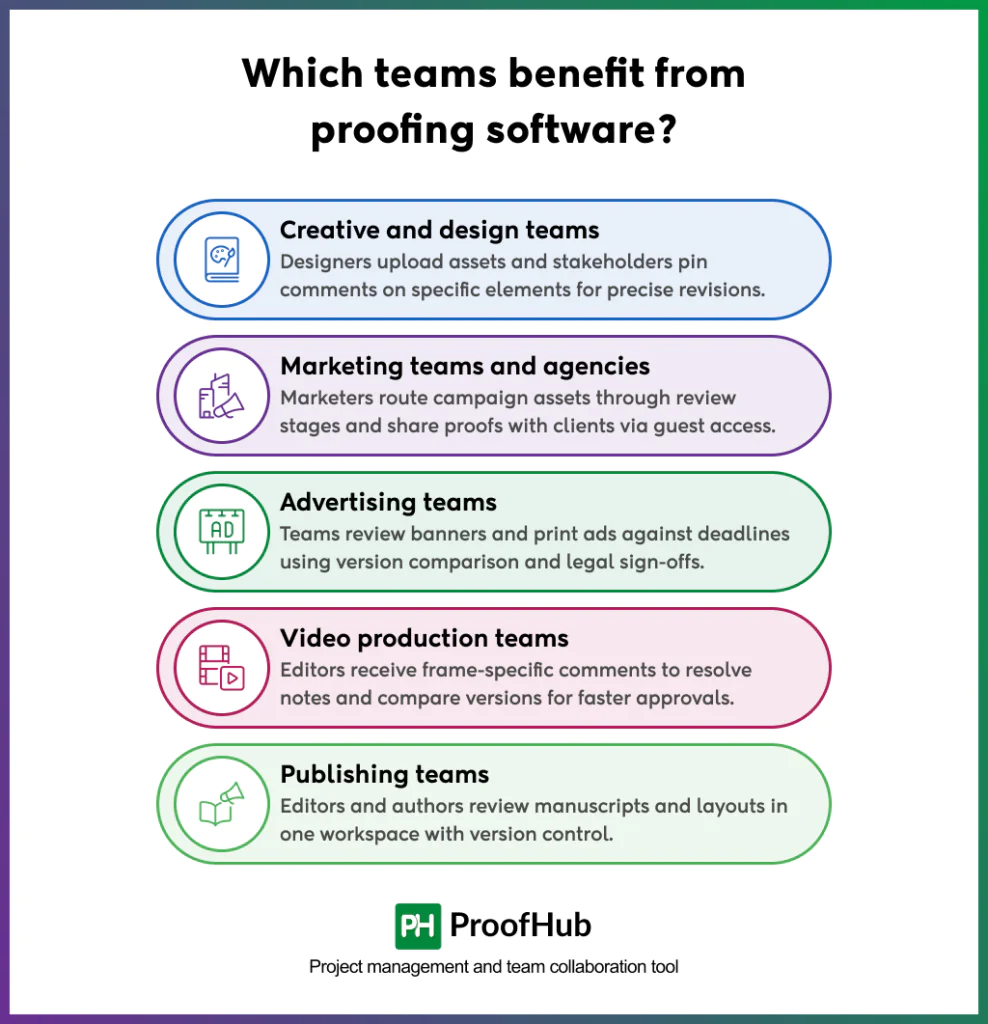
Creative and design teams, marketing teams and agencies, advertising teams, video production teams, and publishing teams benefit most from proofing software, because each reviews visual or written files with multiple stakeholders before anything goes live.
Each group runs repeated review rounds, so scattered feedback and unclear approvals cost them the most time. Teams that handle client work gain the most, since proofing software records every decision. Any team reviewing 10 or more files a month sees the difference quickly.
- Creative and design teams: Designers upload logos, layouts, and brand assets, and stakeholders pin comments on the exact element needing a change. Designers resolve each comment, upload a new version, and send it back for sign-off. Feedback stays precise, revisions stay organized, and approved designs carry a clear timestamp.
- Marketing teams and agencies: Marketers route campaign assets such as emails, landing pages, social graphics, and brochures through copy, brand, and client review. Agencies share proofs with clients through guest access, without email attachments. Defined approval stages and status tracking keep multi-channel campaigns on schedule and give agencies a record of client approvals.
- Advertising teams: Ad teams review banners, print ads, and broadcast creatives against tight media deadlines. Reviewers annotate copy, imagery, and legal disclaimers on each version. Version comparison confirms that every requested change appears in the final ad, and recorded approvals show that legal and brand teams signed off before launch.
- Video production teams: Editors upload cuts, and reviewers leave comments tied to specific frames or timestamps. A note like “trim this scene at 01:12” removes vague descriptions from email. Editors resolve notes, upload revised cuts, and compare versions, so directors and clients approve the final video in fewer rounds.
- Publishing teams: Editors, authors, proofreaders, and designers review manuscripts, magazine layouts, and book covers in one workspace. Reviewers mark text edits and layout corrections directly on the page. Version control stops teams from correcting outdated drafts, and a final approval locks the file before it goes to print.
What are the common mistakes to avoid when using proofing software?
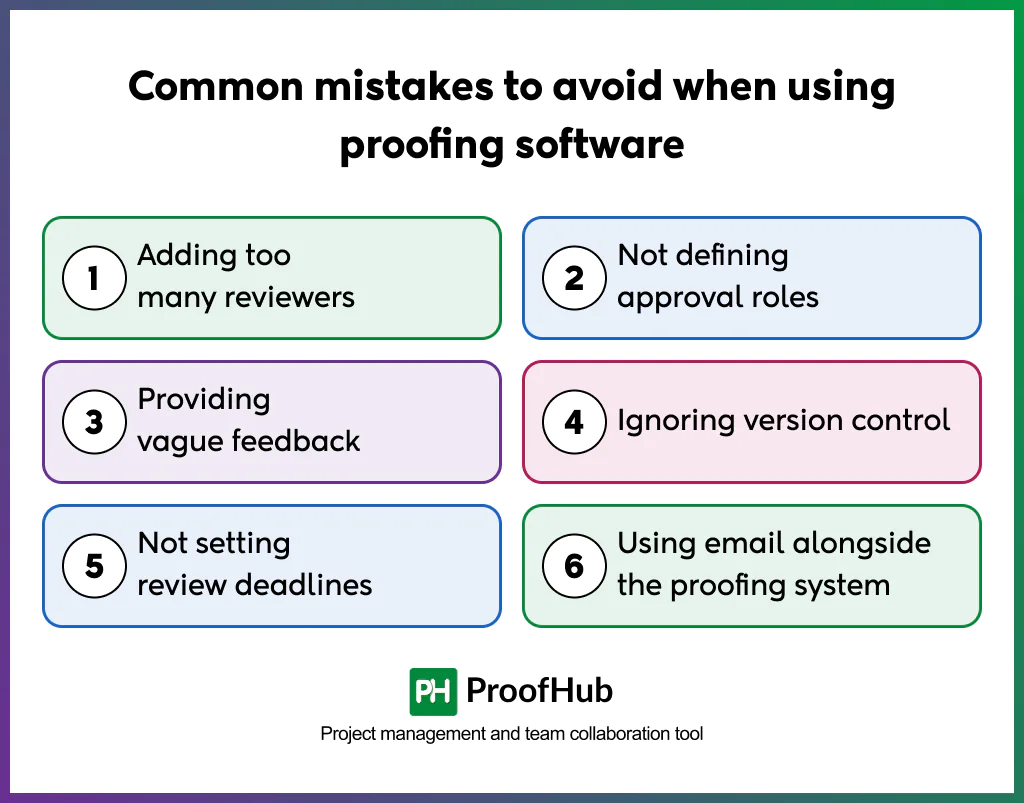
The common mistakes to avoid when using proofing software are adding too many reviewers, not defining approval roles, providing vague feedback, ignoring version control, not setting review deadlines, and using email alongside the proofing system.
Each mistake brings back the problems proofing software exists to solve: scattered feedback, extra review rounds, and unclear approvals. Most of them come from habit, not from the tool, so a short set of review rules fixes them. Teams that agree on those rules before the first project avoid most rework.
- Adding too many reviewers: Inviting everyone “just in case” produces conflicting comments and slow sign-off. Limit each file to reviewers who own a decision, such as the copywriter, brand manager, and client. Fewer reviewers mean fewer contradictions and faster approval.
- Not defining approval roles: When reviewers don’t know who approves, everyone comments and nobody decides. Assign each person a role, commenter or approver, before the review starts. One named approver per stage keeps the file moving and ends debates over who signs off.
- Providing vague feedback: A comment like “make it pop” forces designers to guess and triggers another round. Pin each comment to the exact element and state the change, such as “increase headline size to 32 pt.” Specific notes get fixed in one revision.
- Ignoring version control: Reviewing an old file wastes everyone’s effort. Upload revisions as new versions of the same proof instead of separate files, and confirm reviewers open the latest one. Labeled versions keep feedback tied to the right draft and prevent approving outdated work.
- Not setting review deadlines: Reviews without deadlines sit untouched while launch dates approach. Set a due date for every reviewer and enable automatic reminders. A 48-hour review window, for example, keeps feedback arriving on schedule without anyone chasing it manually.
- Using email alongside the proofing system: Feedback sent by email never reaches the proof, so the record splits again. Ask reviewers to comment only inside the tool and redirect emailed notes there. One channel keeps every decision visible and traceable.
What is the difference between online proofing and traditional proofing?
The difference between online proofing and traditional proofing: Online proofing happens in a shared web-based tool where everyone reviews the same file at once. Reviewers comment directly on the content, see each other’s feedback in real time, and approvals are tracked in one place with version history.
Whereas traditional proofing is manual and sequential. A file (PDF, printout, or email attachment) is passed from one reviewer to the next, each marking changes by hand or in separate copies. Feedback arrives scattered across emails and versions, and someone has to consolidate it and resolve conflicts.
How do I know if my team needs online proofing software?
Your team needs online proofing software if your review, feedback, and approvals relies on scattered email, chat threads, and different documents. It’s also a sign if reviews take three or more rounds, you can’t tell who approved what, or errors slip through to publishing. If you spend more time chasing feedback than acting on it, you need it. With one reviewer and quick turnarounds, a shared doc is enough.
What are the best proofing tools?
Popular online proofing tools include Filestage, Ziflow, ProofHub, PageProof, GoProof, Wrike Proofing, and Frame.io for video. Filestage and Ziflow suit marketing teams, PageProof and GoProof suit agencies and print work, and ProofHub and Wrike combine proofing with project management.
Which file formats can you proof online?
The best fit depends on your file types, number of reviewers, and whether you want a standalone tool or an all-in-one one.
Conclusion
Proofing software replaces scattered feedback with one shared review space. Reviewers comment directly on the file, everyone works on the latest version, and every approval is recorded. The result is fewer review rounds, faster sign-offs, and fewer errors reaching publication.
To choose the right tool, start with your file types, reviewers, and review volume, then test it on a real project before you commit. If you want reviews, tasks, and client feedback in one workspace, look for a platform that combines proofing with project management.