
Remote collaboration tools enable distributed teams to communicate, coordinate tasks, and work on shared content without being in the same location. They improve productivity, visibility, and alignment by centralizing work across time zones.
Teams use these tools to manage tasks, collaborate on documents, share updates, track progress, and maintain accountability without relying on fragmented communication channels. Centralized platforms reduce delays, prevent duplication, and keep work moving regardless of location.
Remote collaboration tools vary by primary function and use case. Some focus on task and project management, others specialize in document collaboration, real-time communication, or visual coordination. The right tool depends on team size, workflow complexity, collaboration style, and integration needs.
Remote collaboration platforms also address common challenges of distributed work. They replace ad-hoc emails and disconnected apps with structured workflows, shared visibility, and controlled access. When implemented correctly, these tools support consistent execution, faster decisions, and predictable outcomes.
Here is the list of 11 remote collaboration tools to choose from.
| Sr. no. | Tool | Best for | Key features | Pricing (billed annually) | Rating |
| 1. | ProofHub | Remote team collaboration and project management | Centralized communication, task management, time tracking, file management, proofing and approvals, custom roles | Essential: $45/mo (unlimited users) Ultimate Control: $89/mo (unlimited users) | G2: 4.6 Capterra: 4.5 |
| 2. | Google Workspace | Cloud-based remote collaboration | Cloud docs, Meets and Chat, shared calendars, Drive storage, tasks and notes | Starter: $7/user/month Standard: $14/user/month Plus: $22/user/month Enterprise: Contact Sales | G2: 4.6 Capterra: 4.7 |
| 3. | Microsoft Teams | Remote teamwork inside Microsoft 365 | Video meetings, cloud calling, coauthoring, channels, messaging | Essential: $4/user/month Business Basic: $6/user/month Business Standard: $12.50/user/month | G2: 4.6 Capterra: 4.6 |
| 4. | Slack | Day-to-day remote communication | Channels, DMs and Huddles, Lists, Workflow Builder, file sharing | Free plan Pro: $7.25/user/month Business+: $15/user/month Enterprise+: Contact sales | G2: 4.4 Capterra: 4.5 |
| 5. | ClickUp | Work management in remote teams | Tasks and sub-tasks, whiteboards, docs, dashboards, workload view, automation, time tracking, goal tracking | Free Forever plan Unlimited: $7/user/month Business: $12/user/month Enterprise: Contact sales | G2: 4.7 Capterra: 4.6 |
| 6. | Figma | Collaborative design and prototyping | Real-time design, prototypes, FigJam, comments, shared libraries | Starter: Free Professional: from $3/user/month Organization: from $5/user/month Enterprise: from $5/user/month | G2: 4.7 Capterra: 4.7 |
| 7. | Loom | Async video communication | Screen and camera recording, instant sharing links, transcription, editing, viewer insights | Starter: Free Business: $15/user/month Business+AI: $20/user/month Enterprise: Contact sales team | G2: 4.7 Capterra: 4.7 |
| 8. | Hiver | Email collaboration for remote customer-facing teams | Shared inboxes, email delegation, SLAs, analytics, collision alerts, automation | Free plan Growth: $25/user/month Pro: $45/user/month Elite: $75/user/month | G2: 4.6 Capterra: 4.7 |
| 9. | Guru | Real-time knowledge management | Knowledge cards, verification, browser extension, AI search, collections and groups, analytics | Self-serve: $25/seat/month Enterprise: Contact sales team | G2: 4.7 Capterra: 4.8 |
| 10. | Todoist | Personal task management | Tasks and subtasks, due dates and reminders, labels, filters, project boards, productivity tracking | Beginner: Free Pro: $5/user/month Business: $8/user/month | G2: 4.5 Capterra: 4.6 |
| 11. | Achievers | Employee recognition and engagement | Real-time recognition, reward catalogs, surveys and feedback, dashboards, integrations, reporting | Custom pricing, contact the sales team for details. | G2: 4.7 Capterra: 4.8 |
1. ProofHub
(Best for remote team collaboration and project management)
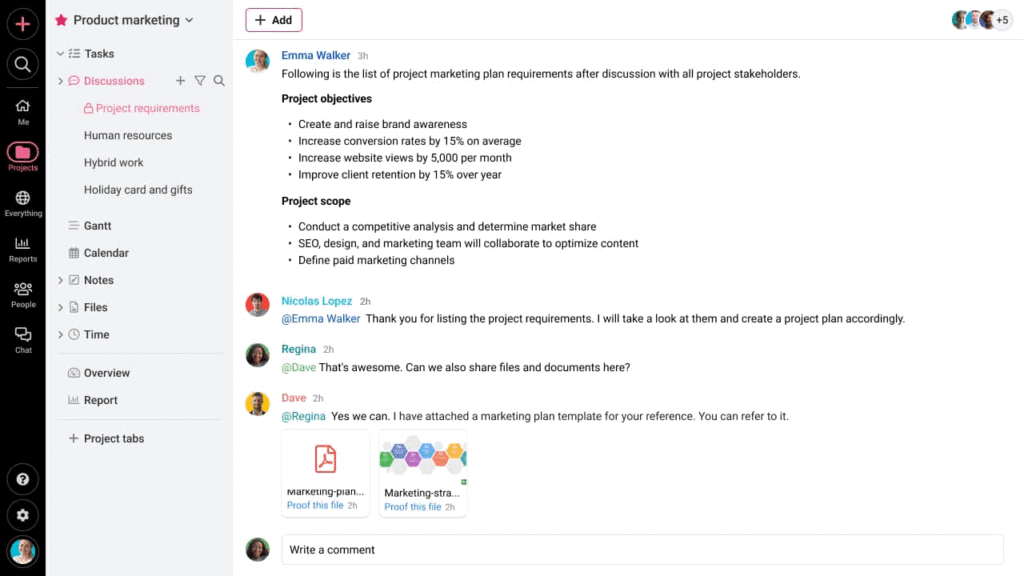
ProofHub is an all-in-one team collaboration and project management tool that centralizes tasks, communication, files, workflows, and reporting in a single platform. Remote teams use it to stay aligned, manage work efficiently, and collaborate without switching between multiple disconnected tools.
Key features:
- Centralized communication: Collaborate through built-in chat, discussions, task comments, mentions, and announcements to keep distributed conversations organized and accessible.
- Task and project management: Assign tasks with deadlines, priorities, dependencies, and custom workflows. Track progress using Kanban boards, Gantt charts, and project views.
- Reports and time tracking: Monitor time spent across tasks, identify bottlenecks, track workload, resource utilization, and status.
- Docs and file management: Store, share, and organize files with version control. Collaborate on documents, maintain accurate versions, and keep information accessible to remote team members.
- Proofing and approvals: Review designs, documents, and creative assets with markup tools. Collect feedback and approvals instantly to shorten review cycles.
- Custom roles and access control: Set granular permissions to control who can view, edit, or manage information, ensuring secure, structured collaboration across distributed environments.
Pros:
- Simple, intuitive interface suitable for globally distributed teams of all sizes.
- A scalable solution that offers flat-fee, no-per-user pricing plans.
- A centralized platform that replaces 5-7 standalone tools for remote work processes.
- Supports async and real-time collaboration.
Cons:
- No free plan available; offers a 14-day free trial.
Pricing:
ProofHub offers a 14-day free trial and two flat-fee, no-per-user pricing options:
- Essential: Flat $45/month for unlimited users and up to 40 projects (billed annually)
- Ultimate Control: Flat $89/month for unlimited users, projects, and advanced features (billed annually)
Rating
- G2: 4.6
- Capterra: 4.5
2. Google Workspace
(Best for cloud-based remote collaboration)
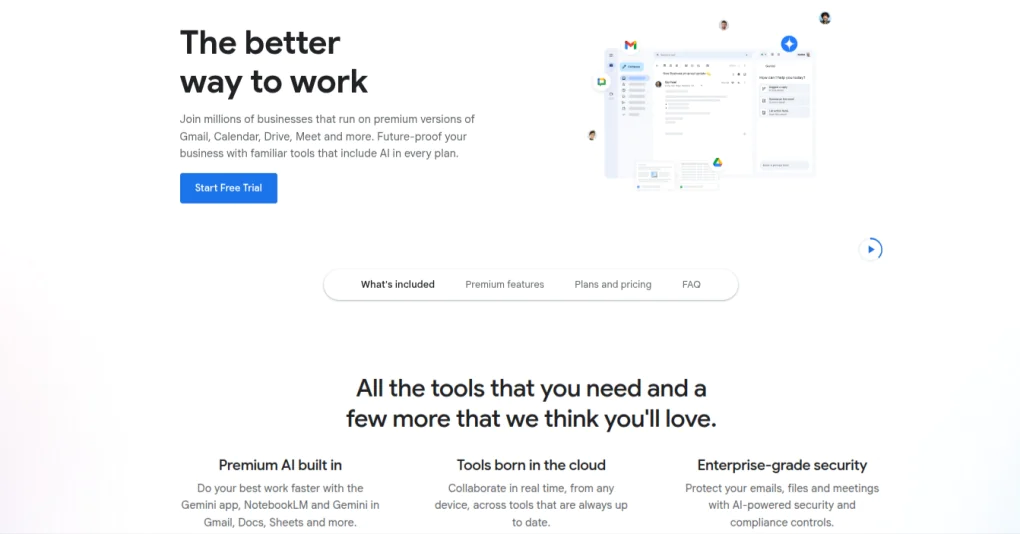
Google Workspace is a cloud-based productivity suite that allows remote teams to communicate, co-edit documents, manage schedules, and store knowledge in an integrated system. It includes Gmail, Drive, Meet, Calendar, Chat, Gemini, Keep, and other applications that support real-time and asynchronous remote work.
Key features:
- Cloud docs with live co-editing: Create and edit documents, spreadsheets, and presentations simultaneously with real-time suggestions, comments, and version history.
- Meet and Chat for remote collaboration: Host video meetings, run breakout sessions, share screens, and communicate through direct messages with reactions and GIFs.
- Shared calendars for alignment: Plan meetings, manage availability, and coordinate workflows with team-wide calendar visibility.
- Secure drive-based file storage: Store, manage, edit, and organize files in a compliant cloud infrastructure.
- Tasks and Keep: Create to-dos, assign tasks, add deadlines, take notes, and organize ideas in a centralized space.
Pros
- A reliable solution for real-time collaboration
- Gemini AI support across Gmail, Docs, Sheets, and more.
- Smooth integration across all Workspace applications.
Cons
- Expensive higher-tier plans.
- Using multiple apps across Workspace requires frequent context switching.
- Lacks advanced project management and workflow automation.
Pricing
Google Workspace offers four paid plans:
- Starter: $7/user/month (billed annually)
- Standard: $14/user/month (billed annually)
- Plus: $22/user/month (billed annually)
- Enterprise: Contact the sales team
Rating
- G2: 4.6
- Capterra: 4.7
3. Microsoft Teams
(Best for remote teamwork within the Microsoft 365 ecosystem)
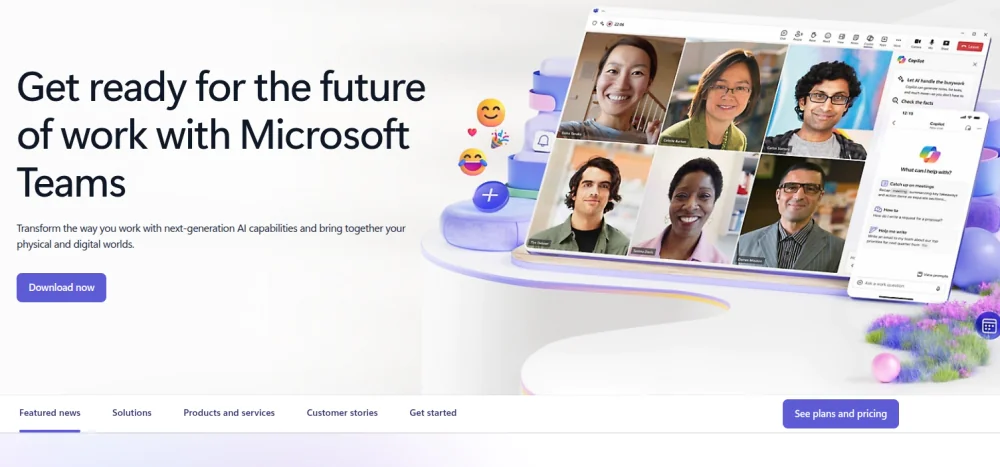
Microsoft Teams is a communication and collaboration hub that helps distributed teams work together from anywhere. As part of the Microsoft 365 suite, it combines chat, video meetings, shared workspaces, and file collaboration in one cloud-based environment, and includes apps such as Word, Excel, PowerPoint, SharePoint, and Outlook.
Key features
- Video conferencing for distributed teams: Run virtual meetings with screen sharing, breakout rooms, custom backgrounds, and cloud recordings.
- Cloud calling and dial-in support: Invite members via meeting links or dial them directly at their phone numbers.
- Real-time coauthoring: Work on documents together from different locations with automatic syncing and version control.
- Channels and team spaces: Create dedicated channels to organize conversations, share updates, and collaborate asynchronously across time zones.
- Instant messaging for fast communication: Send quick messages, share emojis, stickers, or GIFs, and use @mentions to get timely responses from remote teammates.
Pros
- Strong integration with Microsoft 365 apps.
- Supports collaboration in over 30 languages.
- Enterprise-grade security.
Cons
- Cluttered interface due to numerous features and integrations.
- Device limits apply even under higher-tier plans.
- Rigid for teams for users not familiar with Microsoft products.
Pricing
Microsoft 365 offers three business pricing options:
- Essential plan: $4/user/month (billed annually)
- Business Basic plan: $6/user/month (billed annually)
- Business Standard plan: $12.50/user/month (billed annually)
Rating
- G2: 4.6
- Capterra: 4.6
4. Slack
(Best for day-to-day remote team communication)
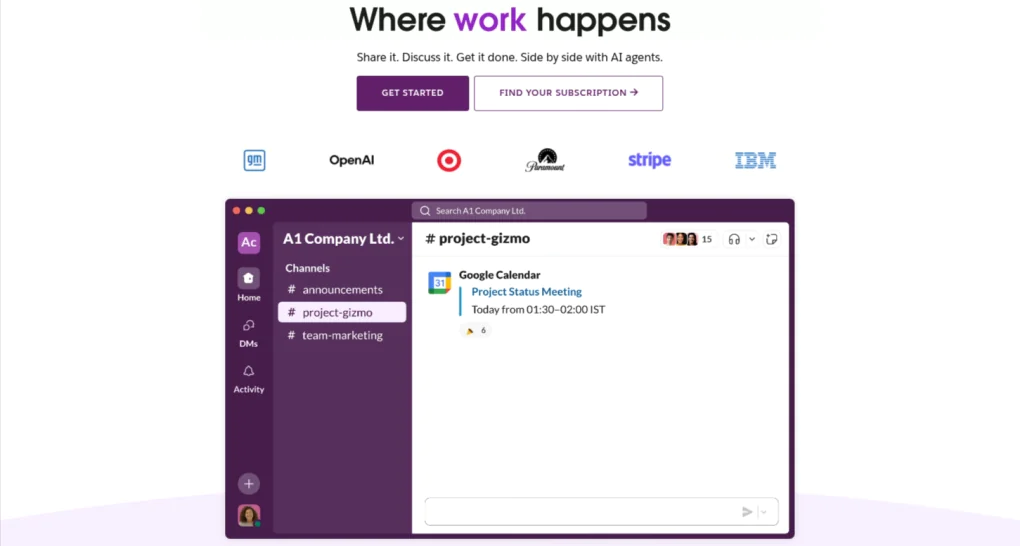
Slack is a communication platform that helps remote teams stay connected, reduce communication delays, and collaborate effortlessly from anywhere. With channels, direct messages, huddles, and integrations, Slack allows distributed teams to centralize conversations, share updates quickly, and avoid the chaos of scattered emails and long feedback cycles.
Key features
- Public and private channels: Create dedicated channels for remote projects, departments, clients, or cross-functional tasks to discuss updates, share files, and keep work organized.
- Direct messages and Huddles: Collaborate through 1:1 or group chats, or jump into quick audio/video Huddles to resolve issues faster.
- Lists: Create, manage, and track tasks using lists to organize work, assign tasks, and keep responsibilities clear without switching tools.
- Workflow Builder: Automate repetitive remote work processes with no-code workflows that run inside messages.
- Contextual file sharing: Share documents, links, and media files from any device or cloud storage provider.
Pros
- Intuitive and straightforward interface.
- Great for fast-paced, real-time conversations.
- Offers 2,600+ third-party integrations.
Cons
- The free plan restricts message history and storage.
- Too many channels and messages create noise and distractions.
- Lacks advanced task planning or project tracking.
Pricing
Slack offers a free plan along with three paid options:
- Free plan: Free for basic functionality
- Pro plan: $7.25/user/month (billed annually)
- Business+ plan: $15/user/month (billed annually)
- Enterprise+ plan: Contact sales for details
Rating
- G2: 4.5
- Capterra: 4.7
5. ClickUp
(Best for work management in remote teams)
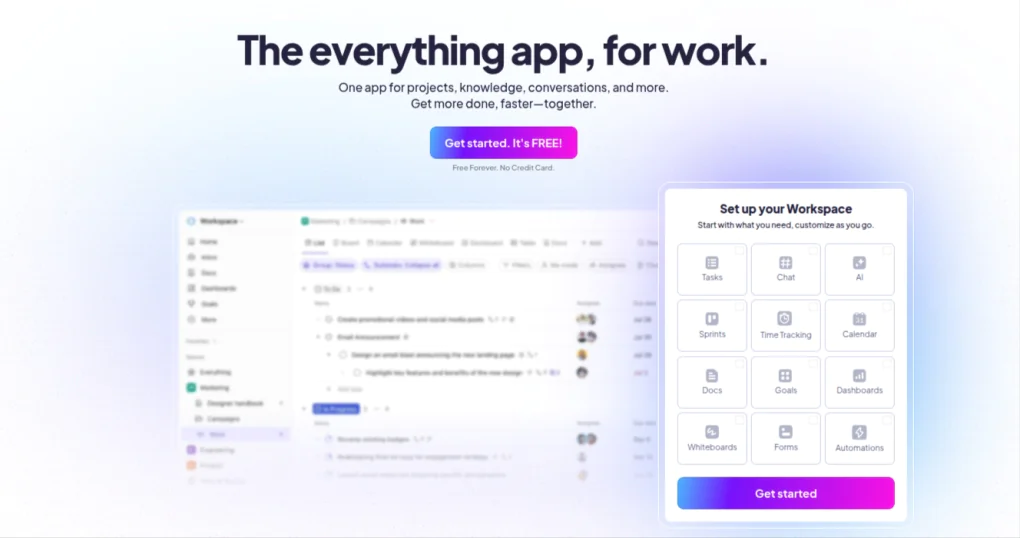
ClickUp is a unified work management platform that helps remote and distributed teams plan projects, track tasks, collaborate on documents, and manage workflows in a single workspace. Its customizable structure helps teams centralize communication, reduce tool switching, and stay aligned across time zones and functions.
Key features
- Customizable tasks and workflows: Create tasks, subtasks, dependencies, and milestones. Customize statuses, priorities, and fields to adapt to remote team workflows.
- Multiple work views: Visualize projects using List, Board, Calendar, Timeline, Gantt, Mind Map, and more.
- Docs and collaboration: Create documents, wikis, and knowledge bases where teams can co-edit, comment, and embed related tasks.
- Chat and threaded comments: Communicate through in-task comments, mentions, and chat channels.
- Automation: Automate routine tasks, handoffs, and updates to reduce manual work.
Pros
- Highly customizable for any type of remote workflow.
- Reduces reliance on multiple apps for documentation, tasks, and communication.
- Strong automation and project views support diverse team needs.
Cons
- Steep learning curve for new teams.
- Performance slows down with large, complex workspaces.
- Advanced features require high-tiered plans.
Pricing
ClickUp offers four pricing plans, including a free one:
- Free Forever plan: $0 for up to 60MB storage
- Unlimited plan: $7/user/month (billed annually)
- Business plan: $12/user/month (billed annually)
- Enterprise plan: Contact the sales team
Rating
- G2: 4.7
- Capterra: 4.6
6. Figma
(Best for collaborative design and prototyping)

Figma is a collaborative design and prototyping platform that enables distributed teams to brainstorm, design interfaces, review visuals, and share feedback in real time. Its cloud-first framework allows designers, developers, and stakeholders to collaborate from anywhere without file conflicts or version-control issues.
Key features
- Real-time collaborative design: Multiple team members can simultaneously design, edit, and comment on the same file.
- Interactive prototypes: Create high-fidelity prototypes with transitions, animations, and interactive elements. Remote teams can preview and test flows without exporting files.
- FigJam for virtual brainstorming: Use sticky notes, diagrams, shapes, and drawing tools on an infinite whiteboard to ideate, map journeys, and run remote workshops or design sprints.
- Comments and annotations: Tag teammates, leave contextual comments, and track discussions directly on designs.
- Version history and shared libraries: Access previous versions, manage design systems, and maintain brand consistency through shared component libraries.
Pros
- Adds space for creative planning (flows, diagrams) without cluttering main design files.
- Combines design, prototyping, and brainstorming in one place.
- Design systems and component libraries enforce brand consistency and reduce duplicate work.
Cons
- Performance lag when working on large, complicated design files.
- Complex if you only need basic wireframing or simple visual mockups without prototyping or developer handoff.
- The free plan limits collaboration features, file count, and library and sharing controls.
Pricing
Figma offers four pricing plans:
- Starter plan: Free
- Professional plan: $3/user/month for Collab seat, $12/user/month for Dev seat, and $16/user/month for Full seat (billed annually)
- Organization plan: $5/user/month for Collab seat, $25/user/month for Dev seat, $55/user/month for Full seat (billed annually)
- Enterprise plan: $5/user/month for Collab seat, $35/user/month for Dev seat, $90/user/month for Full seat (billed annually)
Rating
- G2: 4.7
- Capterra: 4.7
7. Loom
(Best for asynchronous video communication)
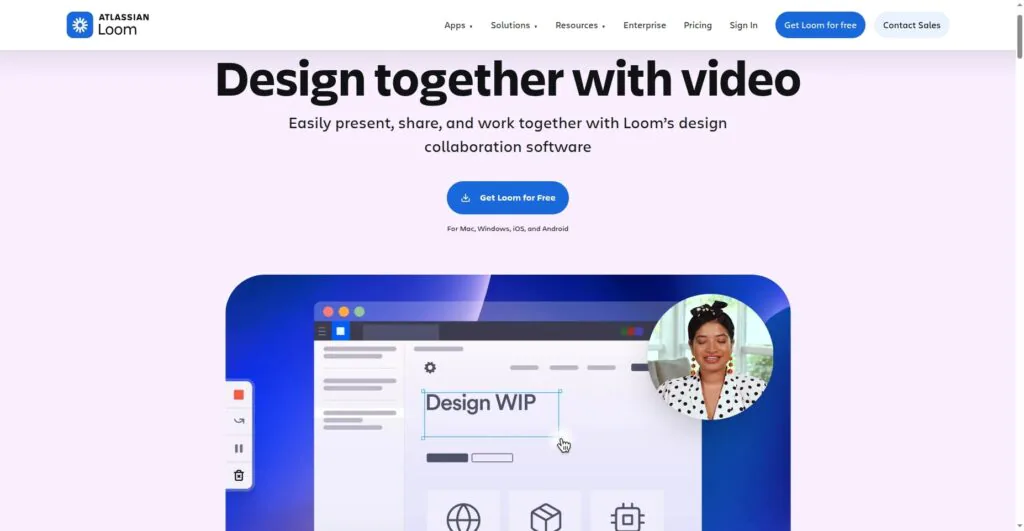
Loom is an asynchronous video messaging platform that enables remote teams to communicate faster by recording short videos instead of scheduling meetings. Distributed teammates can capture screen recordings, walkthroughs, updates, or explanations and share them instantly, helping reduce communication delays, eliminate unnecessary meetings, and maintain clarity across time zones.
Key features
- Instant screen and camera recording: Record screen, webcam, or both to explain tasks, share updates, or provide feedback.
- Async video messaging: Share videos instantly with auto-generated links, reactions, timestamps, and threaded comments.
- Video transcripts and captions: Generate automatic transcriptions, chapters, and captions to skim and understand content quickly.
- Team workspaces: Organize videos into shared folders, grant access to teams or clients, and maintain centralized knowledge repositories.
- AI-powered summaries: Get auto-generated highlights, summaries, and titles to absorb information faster.
Pros
- Significantly reduces unnecessary meetings and back-and-forth messaging.
- Easy to record, share, and track views.
- Lightweight and highly intuitive for non-technical users.
Cons
- Limited editing options in lower-tier plans.
- Heavy usage requires a structured organization to avoid messy workspaces.
- Longer videos reduce engagement for remote teams.
Pricing
Loom offers four pricing plans:
- Starter plan: Free for up to 25 videos
- Business plan: $15/user/month (billed annually)
- Business+AI plan: $20/user/month (billed annually)
- Enterprise plan: Contact the sales team for details
Rating
- G2: 4.7
- Capterra: 4.7
8. Hiver
(Best for email collaboration for remote customer-facing teams)
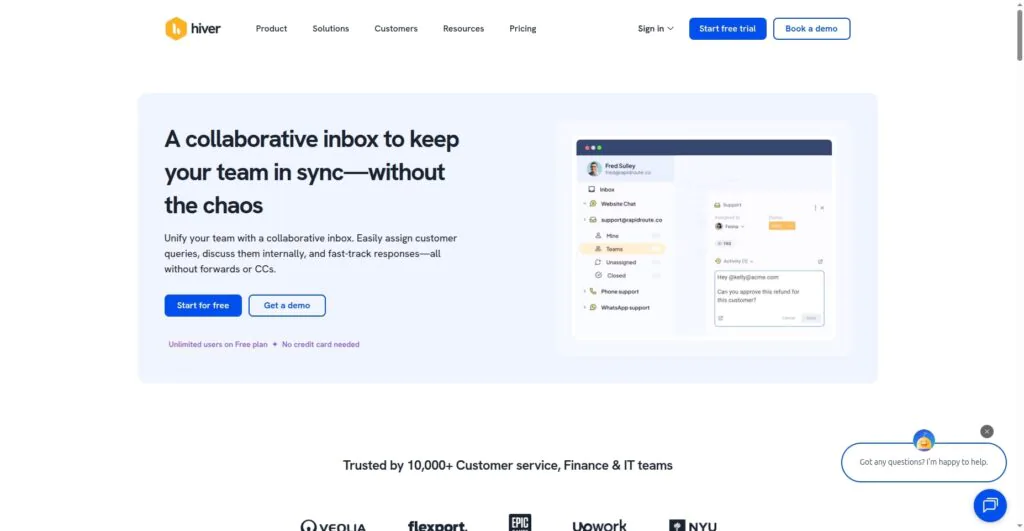
Hiver is a shared inbox and collaboration platform that helps teams manage customer emails, support queries, and internal operations from remote locations. It works directly inside Gmail, allowing distributed teams to collaborate on emails, assign ownership, track status, and resolve conversations efficiently without switching tools.
Key features
- Shared inboxes: Manage group email accounts like support@, info@, finance@, and operations@ directly from Gmail.
- Email assignment and tracking: Assign emails to teammates, set statuses, add notes, and track progress.
- Email tags and automation: Categorize conversations with tags and automate repetitive workflows using rules and triggers.
- Analytics and SLA monitoring: Track response times, resolution times, agent performance, and SLA compliance.
- Internal notes: Collaborate privately on customer emails using contextual notes.
Pros
- Minimal learning curve.
- Improves email ownership and accountability for remote teams.
- Great for distributed customer support, finance, HR, and operations teams.
Cons
- Search and navigation can slow or be less intuitive when inboxes grow large.
- Some workflows require multiple clicks or deeper digging, making frequent tasks time-consuming for heavy users.
- Limited automation capabilities for teams needing complex workflows.
Pricing
Hiver offers four pricing options, including a free one:
- Free plan: $0/user/month
- Growth plan: $25/user/month (billed annually)
- Pro plan: $45/user/month (billed annually)
- Elite plan: $75/user/month (billed annually)
Rating
- G2: 4.6
- Capterra: 4.7
9. Guru
(Best for real-time knowledge sharing)
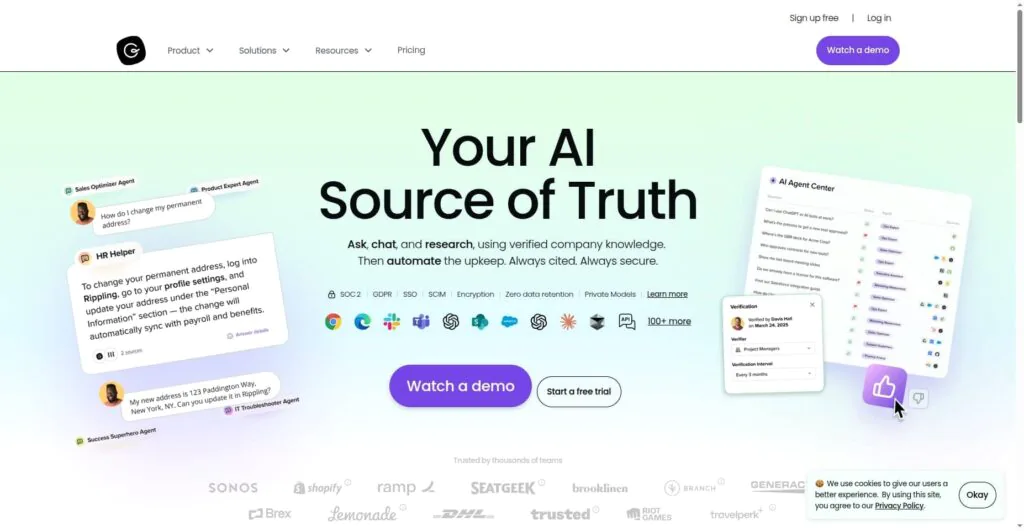
Guru is an internal knowledge management and AI-powered information hub that helps remote teams capture, organize, and access critical knowledge instantly. It centralizes documentation, processes, FAQs, and tribal knowledge so distributed employees never have to waste time searching across apps or asking repetitive questions.
Key features
- Knowledge cards: Create and organize bite-sized knowledge cards for processes, FAQs, SOPs, and onboarding content.
- Browser extension: Access knowledge instantly inside tools like Slack, Gmail, Zendesk, Google Docs, and more.
- AI-powered suggestions: Surface relevant answers in real time based on context, reducing repeated questions.
- Verification workflows: Assign experts to regularly review and verify content.
- Collections and permissions: Organize knowledge by teams, regions, or functions and set granular access controls.
Pros
- Great for reducing repeated questions and information gaps across distributed teams.
- Easy access to knowledge without switching tools.
- Verification workflows ensure accuracy and accountability.
Cons
- Search quality can sometimes become inconsistent, requiring employees to dig deeper than expected.
- Knowledge organization becomes more difficult as content grows without adequate maintenance.
- Limited customization options for large, complex knowledge bases.
Pricing
Guru offers two plans:
- Self-serve plan: $25/seat/month (10-seat minimum, billed annually)
- Enterprise plan: Contact the sales team
Rating
- G2: 4.7
- Capterra: 4.8
10. Todoist
(Best for personal task management)
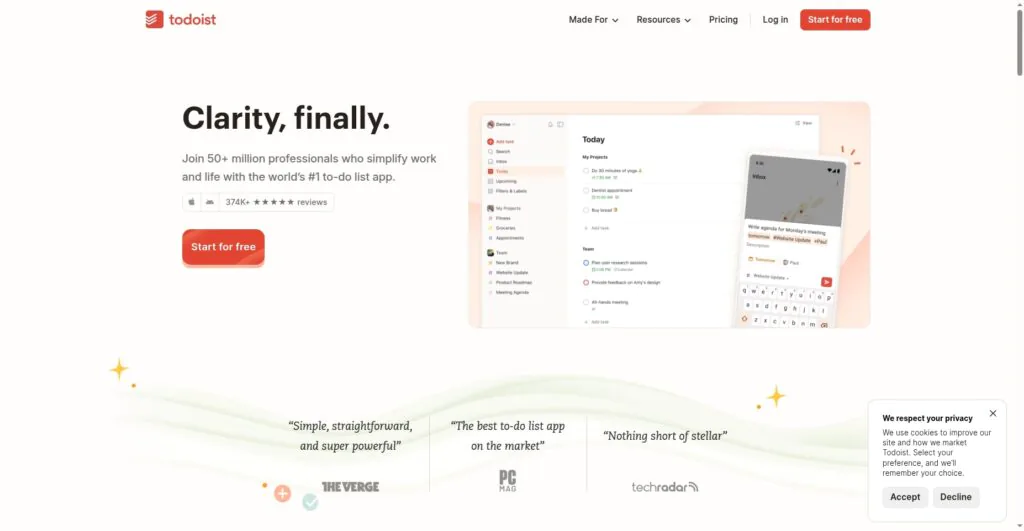
Todoist is a task management tool that helps remote team members organize their personal work, manage priorities, and stay aligned asynchronously. Its simple interface makes it easy for distributed teams to track daily tasks, share small project lists, and coordinate responsibilities without relying on constant meetings or messages.
Key features
- Task organization and labeling: Create tasks, subtasks, sections, and labels to structure work.
- Shared projects for remote collaboration: Share project lists with teammates, assign tasks, set due dates, and manage responsibilities.
- Quick Add and natural language input: Capture tasks instantly using natural language (e.g., “Submit report tomorrow at 10 am”), helping remote workers log functions on the go.
- Priorities and reminders: Set task priorities and reminders to stay on track across time zones.
- Productivity tracking: Use Karma points, activity logs, and progress tracking to monitor personal productivity.
Pros
- Easy to use, minimal learning curve.
- Great for organizing personal workloads in remote setups.
- Lightweight, fast, and available across all devices.
Cons
- Limited to complex projects or multi-team collaboration.
- Lacks advanced workflow automation.
- No native real-time collaboration or communication features.
Pricing
Todoist offers three pricing plans:
- Beginner plan: Free for up to five personal projects
- Pro plan: $5/user/month (billed annually)
- Business plan: $8 (plus local tax) /user/month (billed annually)
Rating
- G2: 4.5
- Capterra: 4.6
11. Achievers
(Best for employee recognition and engagement in distributed teams)
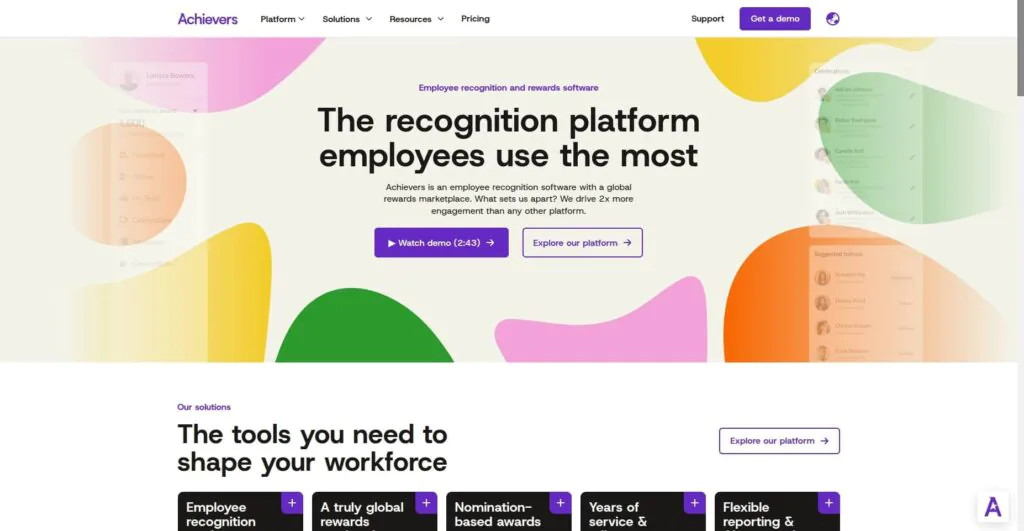
Achievers is an employee recognition and engagement platform that helps remote teams stay motivated, connected, and aligned with organizational values. It enables distributed employees to recognize peers in real time, celebrate achievements, reinforce cultural values, and strengthen morale – critical for teams that don’t share a physical workspace.
Key features
- Peer-to-peer recognition: Send public or private recognitions tied to company values.
- Reward marketplace: Redeem points for a vast catalog of rewards, gift cards, merchandise, and experiences.
- Pulse surveys and feedback: Run real-time engagement surveys, track sentiment, and gather continuous employee feedback.
- Manager insights and analytics: Monitor team engagement, recognition activity, and culture health through dashboards and actionable insights.
- Celebrations and milestones: Automate work anniversaries, birthdays, and team achievements.
Pros
- Boosts morale and reduces disengagement.
- Strong analytics for understanding distributed team sentiment.
- High adoption rate driven by an intuitive, gamified experience.
Cons
- Limited rewards catalog and gift card options.
- Search functionality requires extra effort to locate recognition posts or information.
- Navigating the platform for older team reports is cumbersome.
Pricing
Achievers provides custom pricing based on team size and organizational needs. Contact the sales team for personalized details.
Rating
- G2: 4.7
- Capterra: 4.8
What are remote collaboration tools?
Remote collaboration tools are digital software applications that let distributed teams communicate, share information, coordinate work, and complete tasks without being in the same location.
These tools create a shared workspace where teams exchange messages, manage projects, store files, review updates, and collaborate in real time or asynchronously.
Remote collaboration software includes messaging apps, project management platforms, video-conferencing systems, cloud-based documentation tools, whiteboards, and design workspaces. Their core function is to replace physical proximity with structured digital interaction, ensuring workflow continuity for teams.
Why do remote teams need collaboration tools?
Remote teams need collaboration tools to create a unified workspace where communication, coordination, and project execution remain consistent despite working from different locations.
These tools eliminate the need for physical proximity by standardizing how teams share information, track progress, and make decisions.
In remote collaboration, tools help establish clear communication channels, centralize documentation, and maintain visibility into tasks so teams avoid misalignment. They resolve time-zone fragmentation by supporting asynchronous updates and structured workflows.
These tools also ensure operational continuity by consolidating conversations, files, and decisions in a single space rather than across scattered personal channels.
What key features should a remote collaboration tool have?
Some essential key features a remote collaboration tool should have are:
- Centralized communication: Real-time chat, group channels, threads, comments, @mentions, and announcements keep conversations organized and prevent message loss, ensuring clarity when teams are distributed across locations.
- Task and project management: Task assignment, deadlines, project views, priorities, and progress indicators provide structure for teams. These features ensure everyone knows what to do, when to deliver, and how work moves across the workflow.
- Document collaboration and file sharing: Cloud storage, shared folders, co-editing, proofing, annotations, and version history help teams work on the same file without duplication, keeping information accurate and accessible.
- Real-time collaboration capabilities: Digital whiteboards, co-editing, live comments, and shared workspaces support brainstorming and rapid iteration, replicating in-person collaboration for remote teams.
- Asynchronous collaboration support: Activity logs, recorded meetings, task updates, and comment trails allow work to progress across time zones, maintaining continuity without requiring simultaneous availability.
- Security and access controls: Encryption, role-based permissions, secure authentication, and audit logs protect sensitive data and ensure proper governance across distributed teams.
- Search and knowledge organization: Universal search, documentation hubs, wikis, and structured repositories store decisions, SOPs (Standard Operating Procedures), and institutional knowledge in one place for quick access.
What are the benefits of remote collaboration tools?
Remote collaboration tools strengthen distributed teamwork by improving communication, maintaining alignment, and enabling seamless execution across locations.
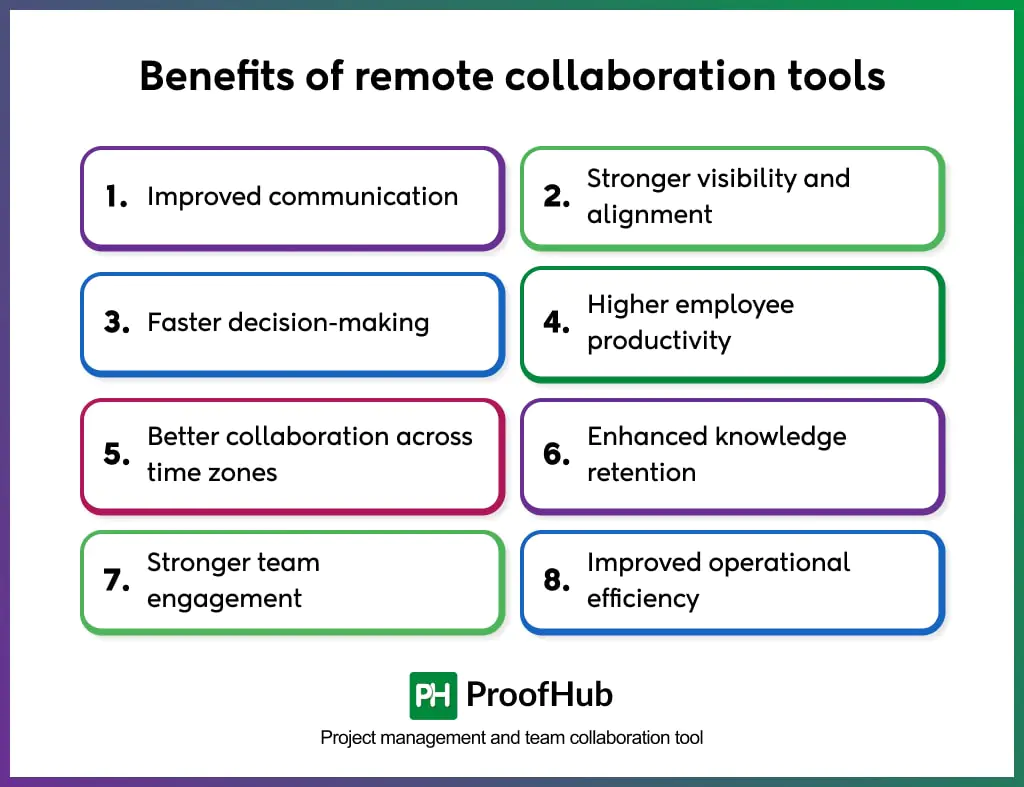
The key benefits of remote collaboration tools are:
- Improved communication: Remote teams exchange information instantly through structured channels, real-time messaging, and shared updates. This removes communication gaps that typically occur in distributed setups.
- Stronger visibility and alignment: Everyone understands priorities, responsibilities, and progress when tasks, files, and discussions stay centralized. This visibility keeps remote teams aligned without constant check-ins.
- Faster decision-making: Decisions are made faster when context, discussions, and historical information are available in a single system, reducing delays caused by scattered messages or missing details.
- Higher employee productivity: Employees complete tasks swiftly when they rely on consistent workflows, clear ownership, and reduced tool-switching.
- Better collaboration across time zones: Asynchronous communication, activity logs, and recorded meetings allow distributed teams to continue work without waiting for others to come online.
- Enhanced knowledge retention: Shared documentation, comment trails, and searchable archives preserve organizational memory, making insights accessible for everyone.
- Stronger team engagement: Employees stay more connected and involved when they have clarity on goals, real-time visibility into updates, and collaborative spaces that replicate in-office teamwork.
- Improved operational efficiency: Teams achieve faster, error-free results when information is organized, tasks follow a structured workflow, and dependencies remain visible.
Best practices for using remote collaboration tools
Some best practices for using remote collaboration tools effectively are:
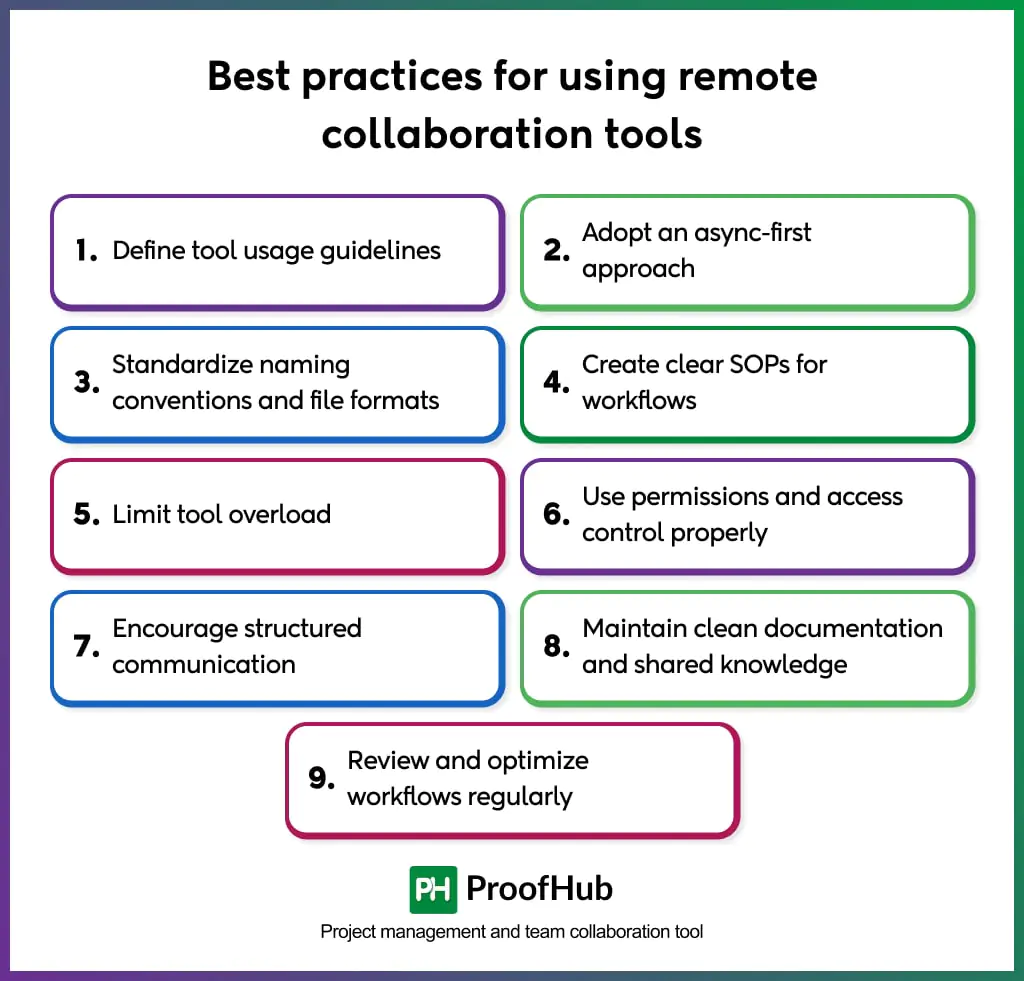
- Define tool usage guidelines: Establish where conversations happen, how updates are shared, and which tool handles tasks, files, or discussions. Clear rules prevent scattered communication and keep information centralized.
- Adopt an async-first approach: Use activity logs, task comments, recordings, and structured updates to reduce dependence on real-time availability. Async practices help global teams maintain uninterrupted progress.
- Standardize naming conventions and file formats: Consistent file names, folder structures, and versioning rules keep documents easy to find and reduce duplication. Teams work faster when information follows predictable patterns.
- Create clear SOPs for workflows: Document steps for task creation, approvals, reviews, meetings, and handoffs. SOPs reduce confusion and ensure every team member follows the same process.
- Limit tool overload: Leverage a centralized tool for tasks, communication, documentation, and meetings. Too many tools create context switching, reduce clarity, and slow productivity.
- Use permissions and access control effectively: define roles, visibility levels, and approval authorities to maintain data security. Proper access control improves governance and prevents unintended changes.
- Encourage structured communication: Use threads, tags, and summaries to keep discussions organized. Structured messages reduce misinterpretation and help others catch up quickly.
- Maintain clean documentation and shared knowledge: Centralize SOPs, decisions, meeting notes, and project details. Updated documentation strengthens knowledge continuity for remote teams.
- Review and optimize workflows regularly: Evaluate tool usage, identify adoption barriers, and address process gaps. Continuous refinement keeps remote work efficient as teams evolve.
How to choose the right remote collaboration tool for your team?
To choose the right remote collaboration tool for your team, match your team’s workflows, communication style, and operational needs with the tool’s capabilities.
- Identify your team’s core collaboration needs: List the primary activities your team performs, like messaging, planning, file sharing, documentation, meetings, design, or brainstorming.
- Evaluate feature depth: Check how well the tool handles communication, task management, async collaboration, file versioning, and real-time work.
- Assess usability and adoption effort: Choose tools with intuitive layouts, clean navigation, and minimal onboarding friction. High usability increases adoption and reduces time spent training new team members.
- Check integrations with existing systems: Ensure the tool integrates seamlessly with your calendars, cloud storage, HR systems, CRMs, design platforms, and development tools. Seamless integration reduces tool-switching and operational delays.
- Review security and governance requirements: Validate encryption, role-based permissions, authentication controls, compliance standards, and data residency options. Strong governance protects distributed teams and enterprise data.
- Consider scalability for team growth: Pick a tool that supports larger teams, complex workflows, multiple projects, and expanded storage without performance issues.
- Analyze cost vs. long-term value: Compare pricing tiers, user limits, storage caps, and advanced features. The right tool delivers consistent productivity gains that justify its price.
- Run a controlled pilot test: Test the tool with a small group to evaluate real-world usability, team alignment, and workflow fit. Pilot feedback reveals hidden friction before full-scale adoption.
How do remote collaboration tools reduce communication delays?
Remote collaboration tools reduce communication delays by centralizing conversations, standardizing update workflows, and eliminating back-and-forth for clarification.
Teams share information instantly through structured channels, real-time messaging, and organized threads that keep every update visible and accessible. This removes delays caused by scattered chats, missed emails, or disconnected tools.
Async features such as activity logs, task comments, @mentions, and recorded meetings ensure work moves forward even when team members operate in different time zones. Teams access context immediately, rather than waiting for someone to come online or resend details.
Shared documents, unified workspaces, and searchable history eliminate time wasted locating files, confirming versions, or repeating explanations. By creating a single source of truth, the tool keeps communication fluid, predictable, and uninterrupted.
How do remote collaboration tools improve employee productivity?
Remote collaboration tools improve employee productivity by creating structured workflows, reducing context switching, and giving teams instant access to the information they need to execute tasks.
Teams work faster when communication, tasks, files, and updates are centralized in a single platform. Clear ownership, visible deadlines, and organized workstreams eliminate the ambiguity that slows execution. Employees focus on priority tasks instead of searching for details or clarifying responsibilities.
Async collaboration features, activity logs, and recorded meetings help teams maintain momentum across time zones. Work continues smoothly without waiting for real-time responses, which increases overall output.
Integrated documentation, version control, and searchable archives reduce repetitive work and prevent errors caused by outdated files or missing context. Employees spend less time resolving avoidable issues and more time delivering meaningful results.